Published Jul 2026
Route Deviation Alert
A Route Deviation alert fires when a vehicle leaves the corridor of a route fence it is supposed to follow. It helps you catch off-route driving, unplanned detours and delivery-order problems early.
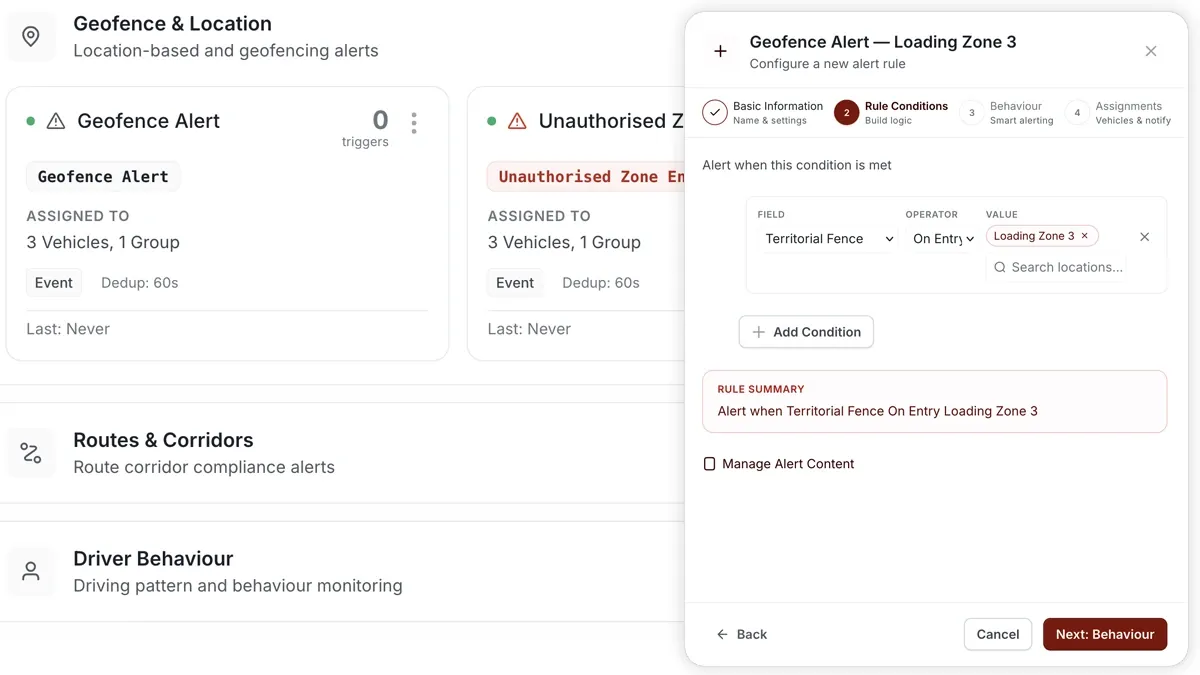
How to set it up
- First create the route fence on the map — see Create a route fence.
- Open Alerts > Rules and click Create rule.
- Pick the Route Deviation template, or choose Start from scratch.
- Adjust the condition to watch the route fence the vehicle should follow.
- Choose which vehicles or groups the rule applies to.
- Set a schedule — Always, Business Hours, Outside Business Hours or Custom.
- Select the notification channels — In-App, Push, Email or SMS.
- Click Save.
What you can set
- Condition — the route fence to watch and the deviation that triggers the alert.
- Vehicles / groups — the vehicles the rule watches.
- Schedule — when the rule is active (Always / Business Hours / Outside Business Hours / Custom).
- Notifications — In-App, Push, Email or SMS.
- Behaviour — fine-tune to cut down on repeat or noisy alerts.
Frequently asked questions
Do I have to draw the route first?
Yes. The rule watches an existing route fence, so create the route fence on the map before you build the rule. See Create a route fence.
Related
Next
Unscheduled Stop / Overstay Alert
Catch unplanned stops. AVLView's unscheduled stop alert fires when a vehicle idles or stays put longer than expected on a route.
Learn more about this feature
Explore featureMore in Alerts & Reminders
Didn't find what you needed?Contact support