Published Jul 2026
Driver Fatigue Alert
A Driver Fatigue alert fires when a driver has been at the wheel continuously beyond a safe limit — by default more than 240 minutes — without a sufficient break. It is a core safety and compliance control that helps you prevent fatigue-related crashes.
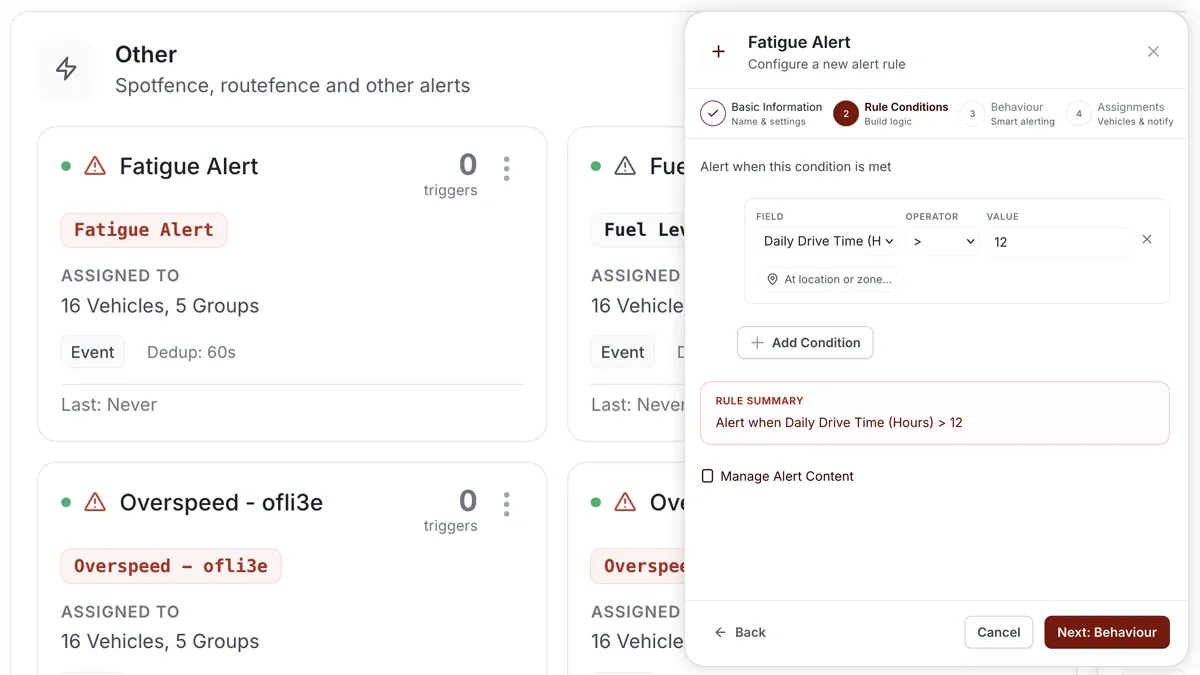
How to set it up
- Open Alerts > Rules and click Create rule.
- Pick the Fatigue Alert Driver template, or choose Start from scratch.
- Adjust the condition so it triggers after continuous driving beyond your limit — default 240 minutes — without a break.
- Choose which vehicles or groups the rule applies to.
- Set a schedule — Always, Business Hours, Outside Business Hours or Custom.
- Pick the notification channels — In-App, Push, Email or SMS.
- Click Save. When the rule triggers, the alert lands in the Inbox and notifications go out.
What you can set
- Condition — set the continuous-driving limit (default 240 minutes) and the break needed to reset it.
- Applies to — all vehicles, selected vehicles or a group.
- Schedule — Always, Business Hours, Outside Business Hours or a Custom window.
- Notifications — In-App, Push, Email and SMS, in any combination.
- Behaviour — fine-tune re-triggering and cooldown to keep noise down.
Frequently asked questions
What counts as a break?
A sufficient stop resets the continuous-driving timer. Set the limit and break to match your fatigue policy — the default is 240 minutes of driving.
How do I report on this?
Pair the alert with the Driver Hours & Shift Compliance report and configure Business Schedule shifts so hours are measured against the right working window.
Related
Next
After-Hours & Daily Driving Limit Alert
Catch vehicles moving outside your business hours and cap total daily driving time — an operations rule for after-hours and fatigue control.
Learn more about this feature
Explore featureMore in Alerts & Reminders
Didn't find what you needed?Contact support