Published Jul 2026
Panic Button Alert
The Panic Button alert fires the instant a driver presses the vehicle's panic or SOS button, raising a "Panic alarm raised" event so your team can respond to a safety incident straight away. It is usually set to Critical priority.
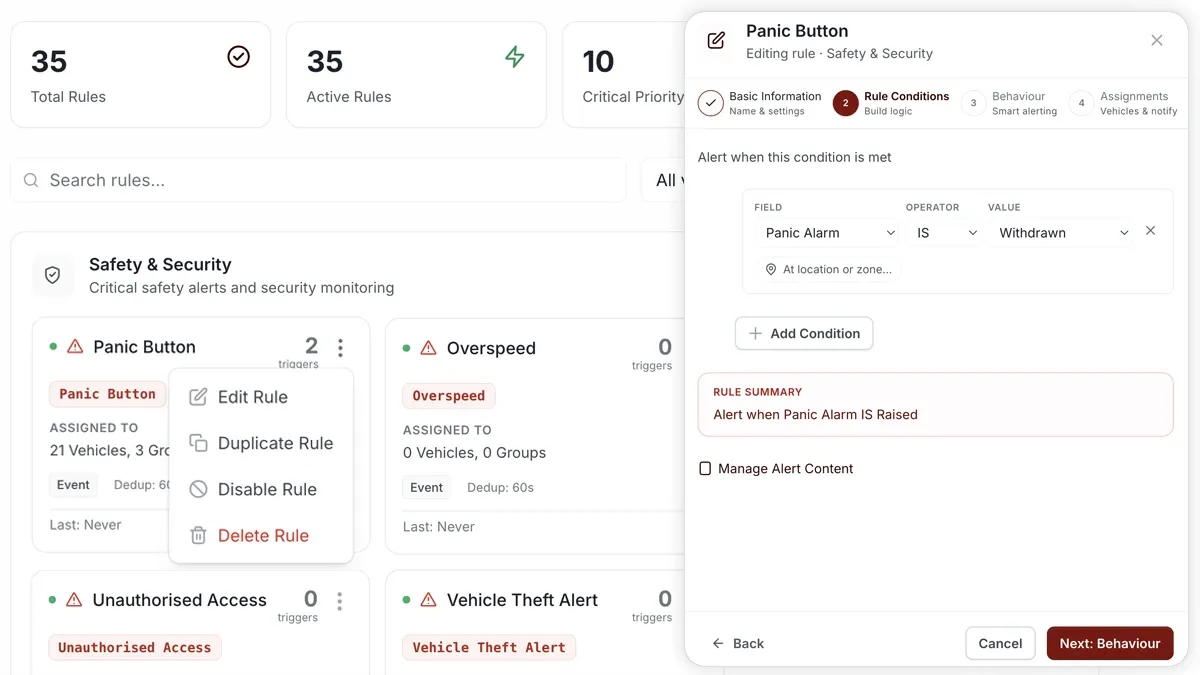
How to set it up
- Open Alerts > Rules and click Create rule.
- Pick the matching safety template, or choose Start from scratch.
- Adjust the condition so it triggers on the panic/SOS event ("Panic alarm raised").
- Choose which vehicles or groups the rule applies to.
- Set a schedule — Always, Business Hours, Outside Business Hours or Custom.
- Select the notification channels — In-App, Push, Email or SMS.
- Click Save.
What you can set
- Condition — the panic/SOS event that raises the alert.
- Priority — set to Critical so it notifies immediately and can escalate.
- Vehicles / groups — the vehicles the rule watches.
- Schedule — when the rule is active (Always / Business Hours / Outside Business Hours / Custom).
- Notifications — In-App, Push, Email or SMS.
- Behaviour — fine-tune to cut down on repeat or noisy alerts.
Frequently asked questions
Do I need a panic button installed?
Yes. This alert depends on a panic or SOS button wired to the vehicle's GPS device. Without that hardware there is no event for the rule to trigger on.
Where does the alert appear?
When it triggers, the alert shows in the Alerts Inbox and notifications go out on your chosen channels.
Related
Next
Unauthorised Access Alert
Get alerted the moment a vehicle is started with no recognised driver — the classic sign of unauthorised use. Build it in a minute under Alerts > Rules.
Learn more about this feature
Explore featureMore in Alerts & Reminders
Didn't find what you needed?Contact support