Join 43,000+ fleet owners tracking smarter.

Start Freeor book a live demo
AVLView

GPS fleet tracking trusted by 43,000+ fleet owners worldwide. Automate operations, cut costs, and scale effortlessly.

GDPR Compliant
Singapore • 11 Countries Worldwide
Philippines•India
support@avlview.com
+65 8228 4559

Fleet tips, straight to your inbox

No spam, unsubscribe anytime.

support@avlview.com+65 8228 4559
Product
  • Fleet Tracking
  • Driver Safety
  • Fuel Monitoring
  • Maintenance
  • Geofencing
  • Landmarks & POIs
  • Reports & Alerts
  • Fleet Capacity
  • API Integration
Solutions
  • Partner Program50-75% margins
Resources
  • Blog
  • Help Center
  • API Reference
Company
  • About Us
  • Become a Partner
  • Contact
  • Pricing
Locations
  • Dubai
  • Riyadh
  • Singapore
  • India
  • Philippines
  • USA

© 2026 AVLView. All rights reserved.

Privacy PolicyTerms of ServiceEULACookie Policy

We use cookies to improve your experience and analyse site traffic. Cookie Policy

AVLView
Pricing
🇸🇬+65 8228 4559
العربيةLogin
Getting Started
Alerts & Reminders
  • How Alerts Work
  • Create an Alert Rule
  • The Alerts Inbox
  • Alert Notifications & Channels
  • Speeding & Adaptive Speeding Alerts
  • Harsh Driving: Braking, Acceleration & Cornering
  • Panic Button Alert
  • Unauthorised Access Alert
  • Vehicle Theft & Towing Alert
  • Geofence Entry & Exit Alert
  • Spotfence Alert
  • Seatbelt Alert
  • Service Due Alert
  • Excessive Idling Alert
  • Low Battery Alert
  • Battery / Power Disconnect Alert
  • Temperature Alert
  • Fuel Drain & Theft Alert
  • Low Fuel Alert
  • Route Deviation Alert
  • Unscheduled Stop / Overstay Alert
  • Driver Fatigue Alert
  • After-Hours & Daily Driving Limit Alert
  • Refuel Alert
  • Proximity Alert
  • Off-Site Stoppage Alert
  • Phone Usage Alert
  • Door Open / Close Alert
  • Ignition On / Off Alert
  • Air-Conditioning On / Off Alert
  • Driver Licence Expiry Reminder
  • Not Receiving Alerts?
  • Verify a Fuel-Drain Alert
Maps & Geofencing
Supported Devices
Reports
Analytics
Service & Maintenance
Trip Scheduling
Dashboard
Settings & Admin
Troubleshooting
What's New
Alerts & Reminders
Published Jul 2026

Unscheduled Stop / Overstay Alert

On this page

  • How to set it up
  • What you can set
  • Frequently asked questions
  • Related

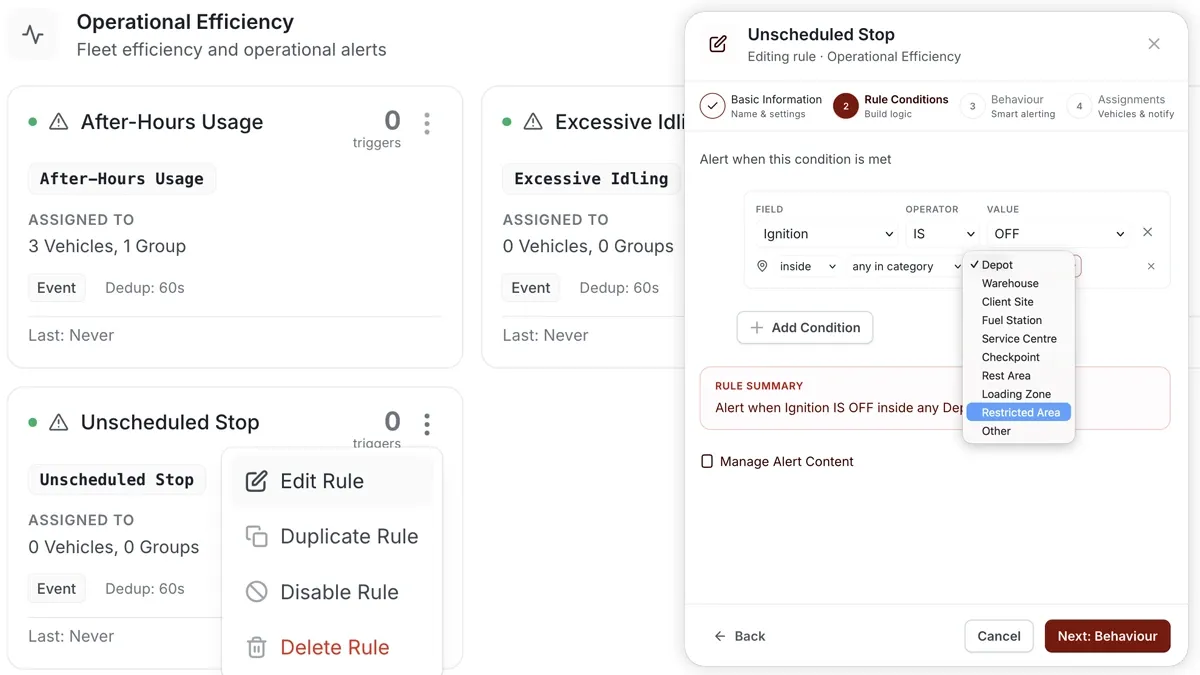
The Unscheduled Stop alert fires when a vehicle stops for longer than expected — by default when idle passes 10 minutes. It surfaces the unplanned pauses on a delivery run: a driver lingering, an unexpected detour, or time lost somewhere it shouldn’t be.
🖼️ IMAGE PLACEHOLDER — supplied by design

Dimensions: 1200 × 675 px (16:9) · PNG or WebP · under 200 KB

Shows: the rule builder with the Unscheduled Stop template — the idle-duration condition set to 10 minutes.

Alt text: AVLView unscheduled stop alert triggering when a vehicle idles beyond ten minutes.

How to set it up

  1. Go to Alerts > Rules and click Create rule.
  2. Pick the matching template, or choose Start from scratch.
  3. Adjust the condition to fit your fleet.
  4. Choose which vehicles or groups the rule applies to.
  5. Set a schedule — Always, Business Hours, Outside Business Hours, or Custom.
  6. Pick the notification channels — In-App, Push, Email, or SMS.
  7. Click Save. When the rule triggers, the alert appears in the Alerts Inbox and notifications go out.

What you can set

  • Condition — the idle/stop duration that counts as an overstay (default > 10 minutes).
  • Assignments — the vehicles or groups the rule watches.
  • Schedule — Always, Business Hours, Outside Business Hours, or Custom.
  • Channels — In-App, Push, Email, SMS.
  • Behaviour — repeat and cooldown settings to keep the noise down.

Frequently asked questions

Where do I change the dwell time at known places?

POI dwell thresholds are configurable in Settings > Trips & Movement. That governs how long a vehicle can sit at a point of interest before it counts as a stop.

Related

  • Stoppage alert for non-office locations
  • Idling alert
Next
Driver Fatigue Alert
Tired drivers cause crashes. This alert fires when a driver stays behind the wheel too long without a break — default over 240 minutes.
Continue

Learn more about this feature

Explore feature

More in Alerts & Reminders

  • How Alerts Work
  • Create an Alert Rule
  • The Alerts Inbox
  • Alert Notifications & Channels
  • Speeding & Adaptive Speeding Alerts
Didn't find what you needed?Contact support

In this guide

  • How to set it up
  • What you can set
  • Frequently asked questions
  • Related
Need a hand?

Talk to our team in your language.

Contact support