Published Jul 2026
How Alerts Work
Alerts turn what is happening on the road into something you can act on. When a rule’s condition is met, an alert lands in your Inbox and notifications are sent — so you catch fuel theft, unsafe driving or an out-of-hours start as it happens rather than days later.
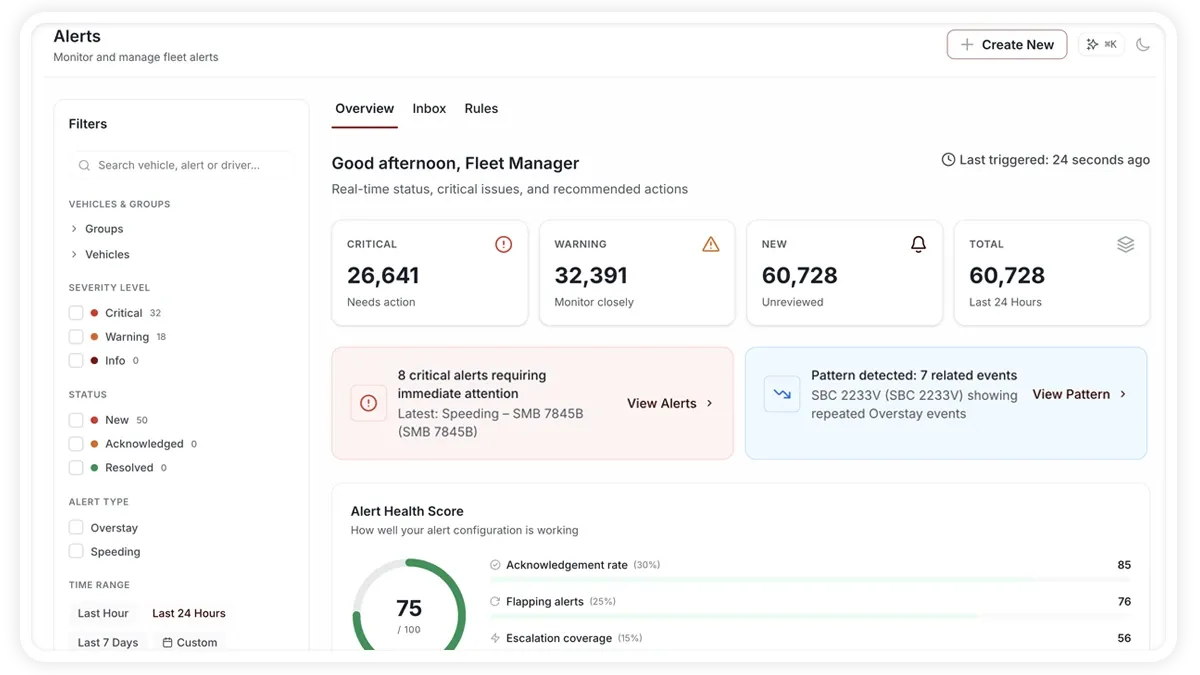
The three areas of Alerts
- Overview — a triage command centre: a status ribbon of Critical and Unacknowledged alerts, hotspots, the triage queue, a volume trend, the type mix and repeat offenders.
- Inbox — the live list of alerts your rules have raised, ready to review and acknowledge.
- Rules — where you build alerts. Every alert in the Inbox comes from a rule here.
How alerts work
- Rules drive everything — a rule watches for a condition (an event or a state) and raises an alert when it is met.
- Templates to start fast — 20+ ready-made templates across six categories: Safety, Maintenance, Geofence, Route, Driver and Operations. Or build one from scratch.
- Notifications — each rule sends In-App, Push, Email or SMS on the schedule you choose.
- Alert Health Score — grades how well your fleet’s alerting is tuned, so you can spot gaps and noisy rules.
Frequently asked questions
Where do I create an alert?
Always under Alerts > Rules. Pick a template or start from scratch, then set the condition, vehicles, schedule and notifications.
What is the Alert Health Score?
A grade of how well-tuned your alerting is — it helps you find missing coverage and rules that fire too often.
Related
Next
Create an Alert Rule
Build a rule-based alert in AVLView: pick a template, set conditions, choose STATE, EVENT or ESCALATION behaviour, then assign vehicles and notifications.
Learn more about this feature
Explore featureMore in Alerts & Reminders
Didn't find what you needed?Contact support