Published Jul 2026
The Alerts Inbox
The Alerts Inbox is where every alert AVLView raises lands, so your team can triage, acknowledge, and resolve incidents from a single screen.
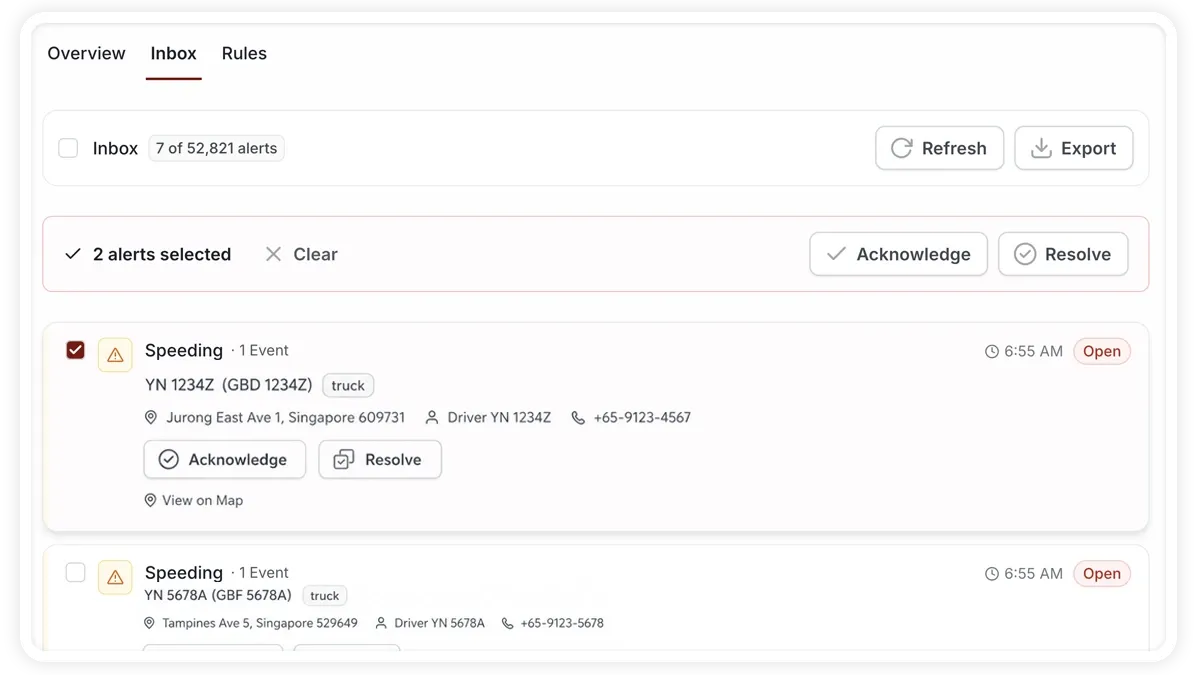
How to use the Inbox
- Open Alerts > Inbox to see every alert.
- Use the filter sidebar to narrow the list down to what matters right now.
- Select alerts with the checkboxes, or use select-all.
- Click Acknowledge or Resolve to action them in bulk — Resolve asks you to confirm.
- Click any alert to open its detail panel, with a location preview and, where the device captured it, event video.
- Use Load more to page through older alerts.
Filters and tools
- Search — by vehicle, type, driver, or location.
- Vehicles & Groups — limit to specific vehicles or fleets.
- Severity — Critical / Warning / Info, each with a live count.
- Status — New / Acknowledged / Resolved.
- Alert Type — filter by the kind of alert.
- Time Range — 1h / 24h / 7d / Custom.
- Export — download the filtered list as XLSX (audit-formatted, with the applied filters in the header) or CSV.
- Overview tab — the triage view, with a status ribbon, hotspots, and a triage queue; you can acknowledge or resolve from there too.
Frequently asked questions
Why do only some alerts have video?
Event video appears in the detail panel only where the device captured it — typically vehicles fitted with a camera. Every alert still shows a location preview.
What is the difference between Acknowledge and Resolve?
Acknowledge marks that someone has seen the alert; Resolve closes it out and asks you to confirm. Both are available in bulk and from the Overview tab.
Related
Next
Alert Notifications & Channels
Choose how AVLView alert rules reach your team: In-App, Push, Email and SMS channels, recipients, quiet hours and message content.
Learn more about this feature
Explore featureMore in Alerts & Reminders
Didn't find what you needed?Contact support