Join 43,000+ fleet owners tracking smarter.

Start Freeor book a live demo
AVLView

GPS fleet tracking trusted by 43,000+ fleet owners worldwide. Automate operations, cut costs, and scale effortlessly.

GDPR Compliant
Singapore • 11 Countries Worldwide
Philippines•India
support@avlview.com
+65 8228 4559

Fleet tips, straight to your inbox

No spam, unsubscribe anytime.

support@avlview.com+65 8228 4559
Product
  • Fleet Tracking
  • Driver Safety
  • Fuel Monitoring
  • Maintenance
  • Geofencing
  • Landmarks & POIs
  • Reports & Alerts
  • Fleet Capacity
  • API Integration
Solutions
  • Partner Program50-75% margins
Resources
  • Blog
  • Help Center
  • API Reference
Company
  • About Us
  • Become a Partner
  • Contact
  • Pricing
Locations
  • Dubai
  • Riyadh
  • Singapore
  • India
  • Philippines
  • USA

© 2026 AVLView. All rights reserved.

Privacy PolicyTerms of ServiceEULACookie Policy

We use cookies to improve your experience and analyse site traffic. Cookie Policy

AVLView
Pricing
🇸🇬+65 8228 4559
العربيةLogin
Getting Started
Alerts & Reminders
  • How Alerts Work
  • Create an Alert Rule
  • The Alerts Inbox
  • Alert Notifications & Channels
  • Speeding & Adaptive Speeding Alerts
  • Harsh Driving: Braking, Acceleration & Cornering
  • Panic Button Alert
  • Unauthorised Access Alert
  • Vehicle Theft & Towing Alert
  • Geofence Entry & Exit Alert
  • Spotfence Alert
  • Seatbelt Alert
  • Service Due Alert
  • Excessive Idling Alert
  • Low Battery Alert
  • Battery / Power Disconnect Alert
  • Temperature Alert
  • Fuel Drain & Theft Alert
  • Low Fuel Alert
  • Route Deviation Alert
  • Unscheduled Stop / Overstay Alert
  • Driver Fatigue Alert
  • After-Hours & Daily Driving Limit Alert
  • Refuel Alert
  • Proximity Alert
  • Off-Site Stoppage Alert
  • Phone Usage Alert
  • Door Open / Close Alert
  • Ignition On / Off Alert
  • Air-Conditioning On / Off Alert
  • Driver Licence Expiry Reminder
  • Not Receiving Alerts?
  • Verify a Fuel-Drain Alert
Maps & Geofencing
Supported Devices
Reports
Analytics
Service & Maintenance
Trip Scheduling
Dashboard
Settings & Admin
Troubleshooting
What's New
Alerts & Reminders
Published Jul 2026

After-Hours & Daily Driving Limit Alert

On this page

  • How to set it up
  • What you can set
  • Frequently asked questions
  • Related

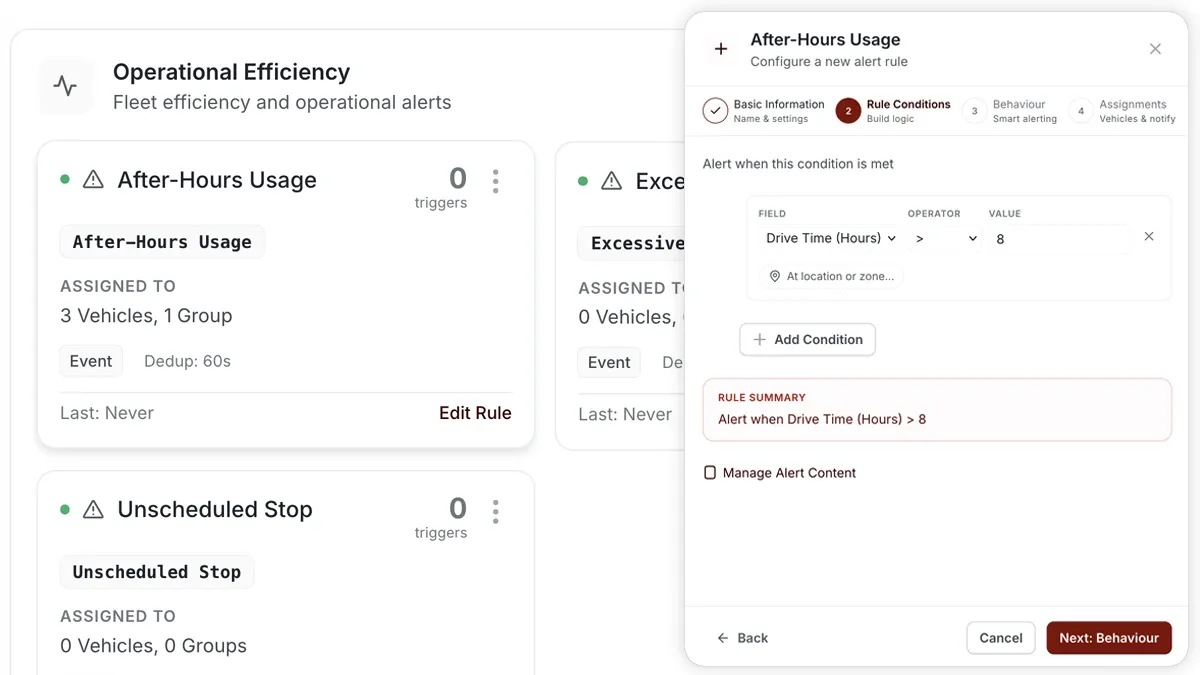
Movement outside your working day can mean unauthorised trips, moonlighting or fatigue risk. The After-Hours Usage template flags it, and pairing it with a daily-driving-limit condition caps total hours behind the wheel.
🖼️ IMAGE PLACEHOLDER — supplied by design

Dimensions: 1200 × 675 px (16:9) · PNG or WebP · under 200 KB

Shows: the Alerts > Rules rule builder with the After-Hours Usage template selected and a daily driving limit condition added.

Alt text: AVLView rule builder showing an after-hours usage and daily driving limit alert.

How to set it up

  1. Go to Alerts > Rules and click Create rule.
  2. Pick the After-Hours Usage template, or choose Start from scratch and combine after-hours movement with a daily-driving-limit condition.
  3. Adjust the condition to match how you operate.
  4. Choose which vehicles or groups the rule applies to.
  5. Set a schedule — Always, Business Hours, Outside Business Hours or Custom.
  6. Pick the notification channels — In-App, Push, Email or SMS.
  7. Click Save. When the rule triggers, the alert lands in your Alerts Inbox and notifications go out.

What you can set

  • After-Hours Usage — an EVENT that triggers on movement outside your business hours.
  • Daily driving limit — add a condition on total hours driven per day.
  • Vehicles / groups — apply to one vehicle, a group or the whole fleet.
  • Schedule — Always, Business Hours, Outside Business Hours or Custom.
  • Notifications — In-App, Push, Email or SMS.
  • Behaviour settings — fine-tune to reduce noise.

Your working day comes from Settings > Business Schedule, so set that first for the after-hours window to be accurate.

Frequently asked questions

Where do I set my business hours?

Business hours are defined in Settings > Business Schedule. The After-Hours Usage rule reads that schedule to decide what counts as after-hours.

Related

  • Continuous driving alert
  • Idling alert
Next
Refuel Alert
Get notified when a refuelling event is detected, so you can reconcile fuel spend. Build it under Alerts > Rules.
Continue

Learn more about this feature

Explore feature

More in Alerts & Reminders

  • How Alerts Work
  • Create an Alert Rule
  • The Alerts Inbox
  • Alert Notifications & Channels
  • Speeding & Adaptive Speeding Alerts
Didn't find what you needed?Contact support

In this guide

  • How to set it up
  • What you can set
  • Frequently asked questions
  • Related
Need a hand?

Talk to our team in your language.

Contact support