Published Jul 2026
Create an Alert Rule
An alert rule tells AVLView what to watch for and who to tell when it happens. Every alert in the new Alerts module is built the same way — in the rule builder — so learning it once covers safety, maintenance, geofence, driver and operations alerts.
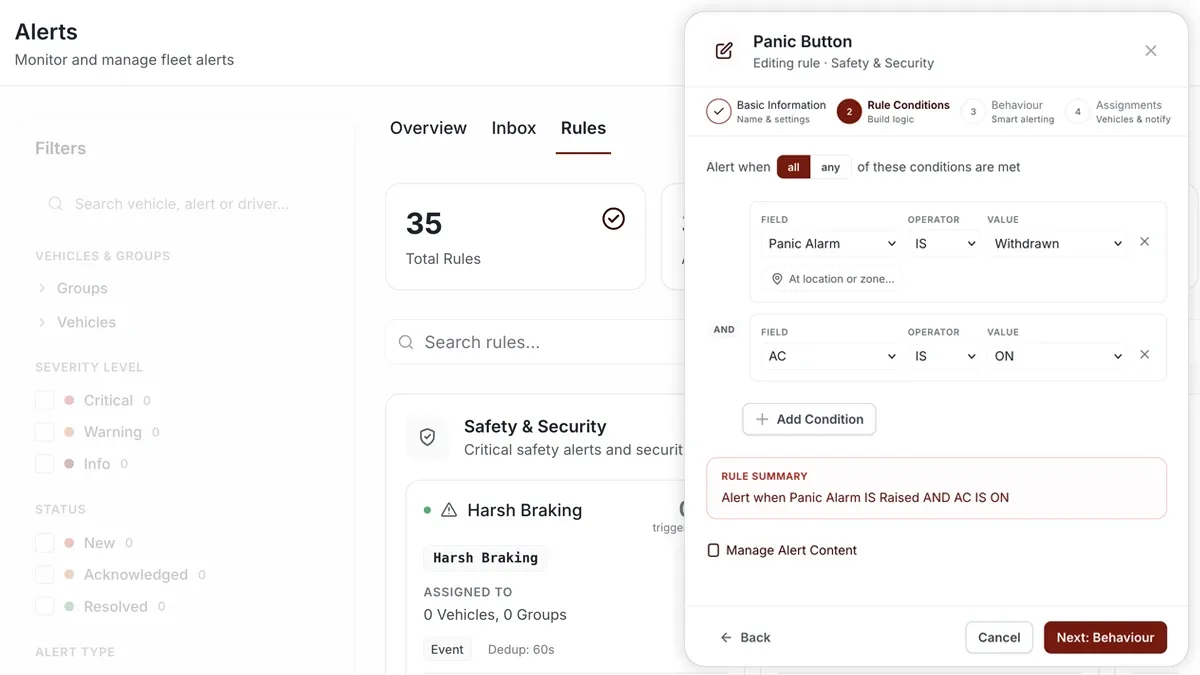
How to set it up
- Go to Alerts > Rules and click Create rule to open the template picker. Use the tabs (All, Safety, Maintenance, Geofence, Driver, Operations), the search box, or the Popular section to pick a template — or choose Start from scratch.
- Basic — give the rule a name, category, priority (Normal or Critical), an alert sound and a colour code.
- Conditions — add one or more rows of field + operator (>, <, >=, <=, IS) + value + unit, with an optional duration. Combine multiple rows with AND / OR.
- Behaviour — choose STATE, EVENT or ESCALATION (explained below).
- Schedule — Always, Business Hours, Outside Business Hours, or Custom (set open days plus start/end times).
- Assignments — apply the rule to all vehicles, or to specific vehicles and groups.
- Notifications — pick the channels and recipients, then Save.
Behaviour: STATE vs EVENT vs ESCALATION
- STATE — a condition that turns on and later auto-resolves (for example, an overheating engine that cools down). A resolve buffer (hysteresis) and a “sustained for” duration stop it flapping on and off.
- EVENT — a discrete incident (for example, harsh braking). A dedup window prevents repeats, and you can aggregate events per trip or per time window.
- ESCALATION — time-based tiers that widen the audience if nobody resolves the alert, so critical issues reach the right people.
Frequently asked questions
What is the difference between Normal and Critical priority?
Priority controls how prominently the alert is surfaced — Critical alerts stand out in the Inbox and are best kept for issues that need an immediate response, so they don’t get lost among routine ones.
Can one rule cover several vehicles?
Yes. In the Assignments step you can apply a rule to all vehicles, or to specific vehicles and groups — you don’t need a separate rule per vehicle.
Related
Next
The Alerts Inbox
The Alerts Inbox lists every alert AVLView raises. Filter, acknowledge, resolve, and export from one triage screen.
Learn more about this feature
Explore featureMore in Alerts & Reminders
Didn't find what you needed?Contact support