Join 43,000+ fleet owners tracking smarter.

Start Freeor book a live demo
AVLView

GPS fleet tracking trusted by 43,000+ fleet owners worldwide. Automate operations, cut costs, and scale effortlessly.

GDPR Compliant
Singapore • 11 Countries Worldwide
Philippines•India
support@avlview.com
+65 8228 4559

Fleet tips, straight to your inbox

No spam, unsubscribe anytime.

support@avlview.com+65 8228 4559
Product
  • Fleet Tracking
  • Driver Safety
  • Fuel Monitoring
  • Maintenance
  • Geofencing
  • Landmarks & POIs
  • Reports & Alerts
  • Fleet Capacity
  • API Integration
Solutions
  • Partner Program50-75% margins
Resources
  • Blog
  • Help Center
  • API Reference
Company
  • About Us
  • Become a Partner
  • Contact
  • Pricing
Locations
  • Dubai
  • Riyadh
  • Singapore
  • India
  • Philippines
  • USA

© 2026 AVLView. All rights reserved.

Privacy PolicyTerms of ServiceEULACookie Policy

We use cookies to improve your experience and analyse site traffic. Cookie Policy

AVLView
Pricing
🇸🇬+65 8228 4559
العربيةLogin
Getting Started
Alerts & Reminders
Maps & Geofencing
Supported Devices
Reports
Analytics
Service & Maintenance
Trip Scheduling
Dashboard
Settings & Admin
  • Settings Overview
  • Invite & Manage Users
  • User Roles & Permissions
  • Create & Manage Groups
  • Add & Manage Drivers
  • Edit Vehicle Details
  • Group Permission Templates
  • Vehicle Add-ons & Sensors
  • Remote Immobilisation
  • Branding: Logo & Custom URL
  • Business Hours & Shifts
  • Inspection Templates
  • Audit Log
  • Developer API & API Keys
  • Notification Preferences
  • Set a Vehicle Speed Limit
  • Move Vehicles Between Groups
  • Update Driver Details
  • Change Your Password
  • Reset a Forgotten Password
  • View User Login Sessions
  • View User Activity
  • Verify Your Email & Mobile
  • Update Your Email
  • Update Your Mobile Number
  • Roaming Profile for Cross-Border Trucks
  • Set the Default Landing Page
  • Out-of-Hours Detection
  • Regional & Language Settings
Troubleshooting
What's New
Settings & Admin
Published Jul 2026

Settings Overview

On this page

  • How Settings is organised
  • Common tasks
  • Frequently asked questions
  • Related

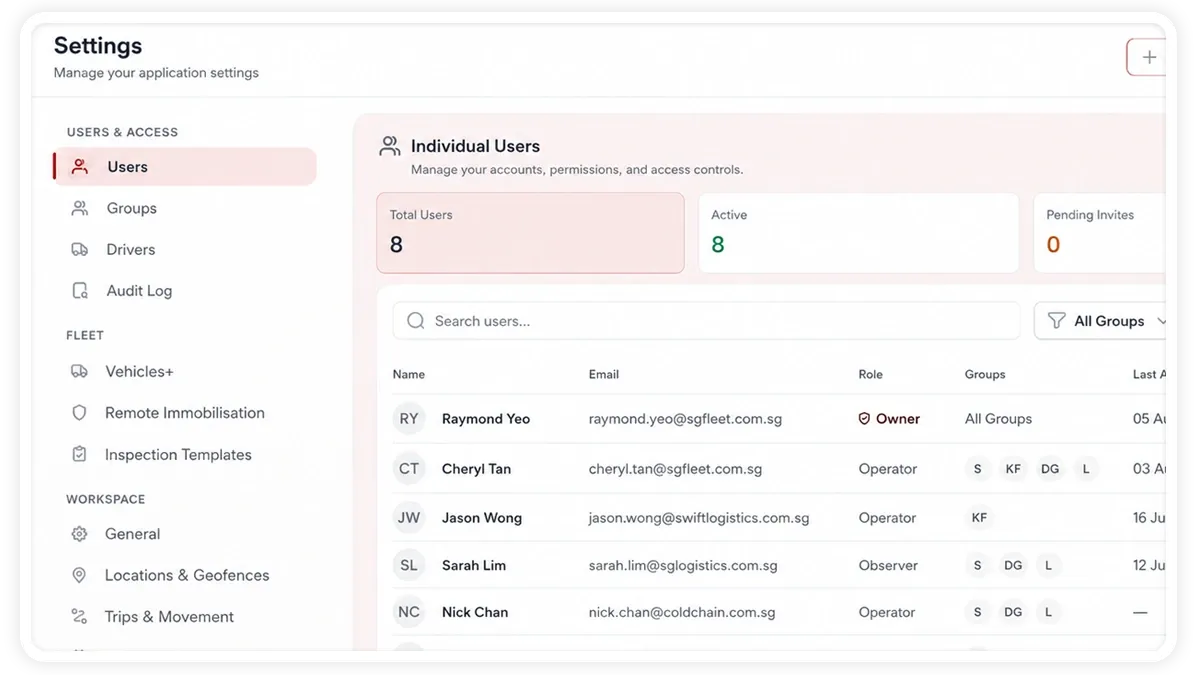
Settings is where administrators configure how AVLView works for the whole organisation — who can sign in, which vehicles and hardware are tracked, and how alerts and reports behave. Most settings are admin- or owner-only.
🖼 IMAGE PLACEHOLDER — supplied by design

Dimensions: 1200 × 675 px (16:9) · PNG or WebP · under 200 KB

Shows: The Settings landing screen with the four-group left navigation expanded.

Alt text: AVLView Settings area showing Users and Access, Fleet, Workspace, and Billing and Integrations groups.

How Settings is organised

The left navigation groups everything into four areas:

  • Users & Access — users, groups, drivers, and the audit log. Control who can sign in and what they can see.
  • Fleet — vehicles & hardware, add-ons & sensors, remote immobilisation, and inspection templates. Everything about the physical fleet and its devices.
  • Workspace — general/organisation details, business schedule, notifications, display & interface, and locations. Tune AVLView to how your organisation runs.
  • Billing & Integrations — the developer API and related integration settings.

Common tasks

  • Add a user — give a colleague sign-in access with the right permissions.
  • Edit vehicle details — update a vehicle's name, registration, or attributes.
  • Personalise your logo and URL — brand the workspace for your organisation.

Frequently asked questions

Who can change these settings?

Most settings are restricted to administrators and owners. If a section is greyed out or missing, ask an administrator on your account to grant access.

What is the difference between users and drivers?

Users sign in to AVLView; drivers operate vehicles and are identified by hardware or phone. They live in separate sections under Users & Access.

Related

  • Add a User
  • Edit Vehicle Details
  • Personalise Your Logo and URL
Next
Invite & Manage Users
Invite one or many portal users at once, assign them to vehicle groups, set a role, then edit, resend, revoke, or remove access from Settings > Users.
Continue

More in Settings & Admin

  • Invite & Manage Users
  • User Roles & Permissions
  • Create & Manage Groups
  • Add & Manage Drivers
  • Edit Vehicle Details
Didn't find what you needed?Contact support

In this guide

  • How Settings is organised
  • Common tasks
  • Frequently asked questions
  • Related
Need a hand?

Talk to our team in your language.

Contact support