Published Aug 2026
Create & Manage Groups
Groups in AVLView let you organise users and vehicles together so you can manage access in bulk instead of one record at a time. This guide shows you how to create and manage a group.
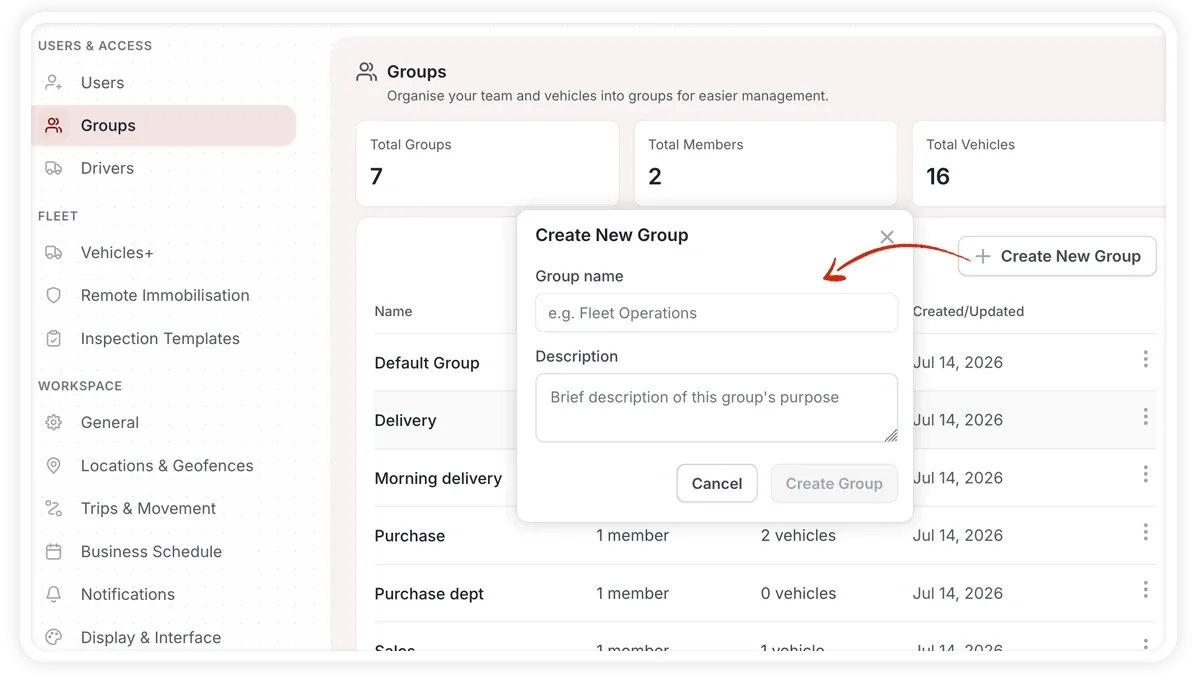
How to create a group
- Go to Settings > Groups.
- Select Create group.
- Enter a name and an optional description.
- Save the group.
- Open the group to add members, vehicles, and permissions from its detail view.
What the group detail view contains
- Members — add or remove the users who belong to the group.
- Vehicles — assign or remove the vehicles the group covers.
- Permissions — apply a permission template and fine-tune the individual toggles that scope what the group can access.
To edit a group, reopen it and update the name, description, or any tab. To remove one, use the delete option on the group.
Frequently asked questions
What are groups used for?
Groups let you manage users and vehicles in bulk and scope access, so a set of users only sees the vehicles that matter to them.
Can I control what a group can see?
Yes. The Permissions tab in the group's detail view applies a template plus individual toggles that scope the group's access.
Related
Next
Add & Manage Drivers
Add drivers, edit or remove them, and bulk-import from a spreadsheet — plus how drivers differ from users in AVLView.
More in Settings & Admin
Didn't find what you needed?Contact support