Join 43,000+ fleet owners tracking smarter.

Start Freeor book a live demo
AVLView

GPS fleet tracking trusted by 43,000+ fleet owners worldwide. Automate operations, cut costs, and scale effortlessly.

GDPR Compliant
Singapore • 11 Countries Worldwide
Philippines•India
support@avlview.com
+65 8228 4559

Fleet tips, straight to your inbox

No spam, unsubscribe anytime.

support@avlview.com+65 8228 4559
Product
  • Fleet Tracking
  • Driver Safety
  • Fuel Monitoring
  • Maintenance
  • Geofencing
  • Landmarks & POIs
  • Reports & Alerts
  • Fleet Capacity
  • API Integration
Solutions
  • Partner Program50-75% margins
Resources
  • Blog
  • Help Center
  • API Reference
Company
  • About Us
  • Become a Partner
  • Contact
  • Pricing
Locations
  • Dubai
  • Riyadh
  • Singapore
  • India
  • Philippines
  • USA

© 2026 AVLView. All rights reserved.

Privacy PolicyTerms of ServiceEULACookie Policy

We use cookies to improve your experience and analyse site traffic. Cookie Policy

AVLView
Pricing
🇸🇬+65 8228 4559
العربيةLogin
Getting Started
Alerts & Reminders
Maps & Geofencing
Supported Devices
Reports
Analytics
Service & Maintenance
Trip Scheduling
Dashboard
Settings & Admin
  • Settings Overview
  • Invite & Manage Users
  • User Roles & Permissions
  • Create & Manage Groups
  • Add & Manage Drivers
  • Edit Vehicle Details
  • Group Permission Templates
  • Vehicle Add-ons & Sensors
  • Remote Immobilisation
  • Branding: Logo & Custom URL
  • Business Hours & Shifts
  • Inspection Templates
  • Audit Log
  • Developer API & API Keys
  • Notification Preferences
  • Set a Vehicle Speed Limit
  • Move Vehicles Between Groups
  • Update Driver Details
  • Change Your Password
  • Reset a Forgotten Password
  • View User Login Sessions
  • View User Activity
  • Verify Your Email & Mobile
  • Update Your Email
  • Update Your Mobile Number
  • Roaming Profile for Cross-Border Trucks
  • Set the Default Landing Page
  • Out-of-Hours Detection
  • Regional & Language Settings
Troubleshooting
What's New
Settings & Admin
Published Jul 2026

Update Your Email

On this page

  • How to update your email
  • What to keep in mind
  • Frequently asked questions
  • Related

Your registered email is where AVLView sends alerts and offline reports. Keep it current so you never miss a notification, and verify each new address after you change it.
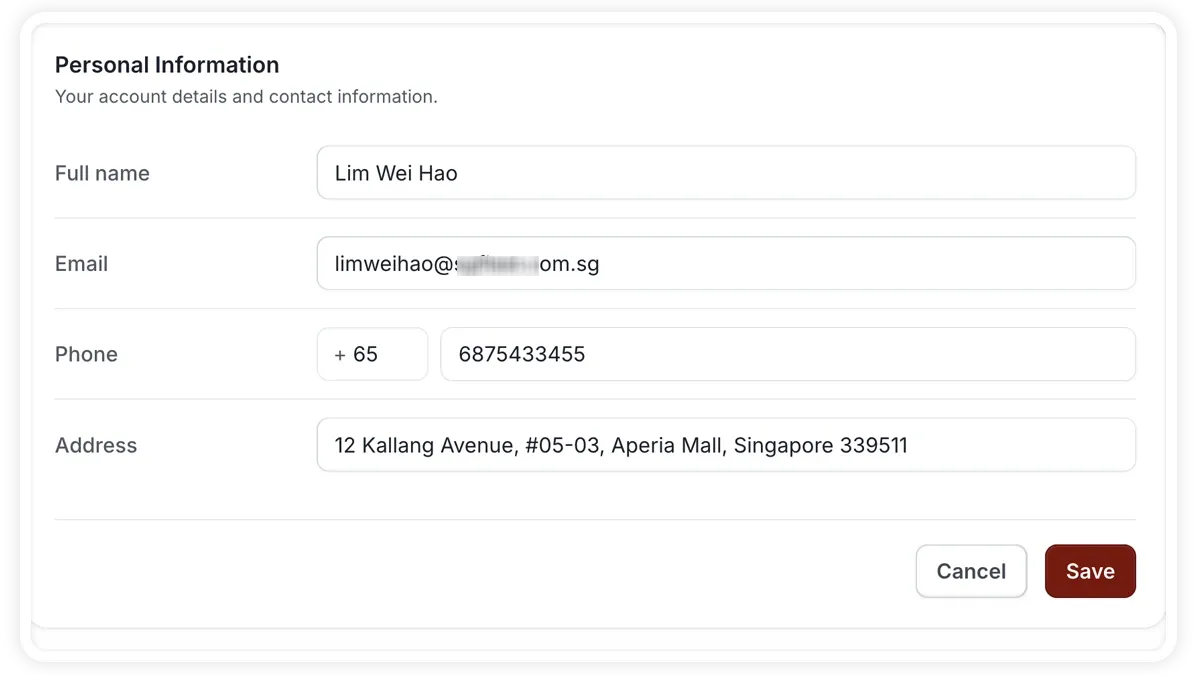
🖼️ IMAGE PLACEHOLDER — supplied by design

Dimensions: 1200 × 675 px (16:9) · PNG or WebP · under 200 KB

Shows: The profile screen with the registered email field being edited and the verify prompt.

Alt text: AVLView profile screen showing the registered email field and verification step.

How to update your email

  1. Open your profile.
  2. Edit the registered email and enter the new address.
  3. Save the change.
  4. Verify the new address using the confirmation AVLView sends to it.

What to keep in mind

  • Registered email — the address AVLView uses for alerts and offline reports.
  • Verification — confirm the new address so it becomes active and delivery continues.
  • Keep it current — an out-of-date email means you miss notifications, so update it whenever it changes.

Frequently asked questions

Why do I need to verify the new email?

Verification confirms the address belongs to you and is reachable, so alerts and offline reports keep arriving without interruption. Until you verify, the change may not take full effect.

Related

  • Verify Your Email and Mobile Number
  • Update Your Registered Mobile Number
Next
Update Your Mobile Number
Update your registered mobile number from your profile so you keep receiving SMS and push alerts, then verify the new number.
Continue

More in Settings & Admin

  • Settings Overview
  • Invite & Manage Users
  • User Roles & Permissions
  • Create & Manage Groups
  • Add & Manage Drivers
Didn't find what you needed?Contact support

In this guide

  • How to update your email
  • What to keep in mind
  • Frequently asked questions
  • Related
Need a hand?

Talk to our team in your language.

Contact support