Published Aug 2026
Edit Vehicle Details
The Vehicles area in AVLView is where you add and maintain each vehicle's core details. Only Owner or Admin users can edit vehicle details.
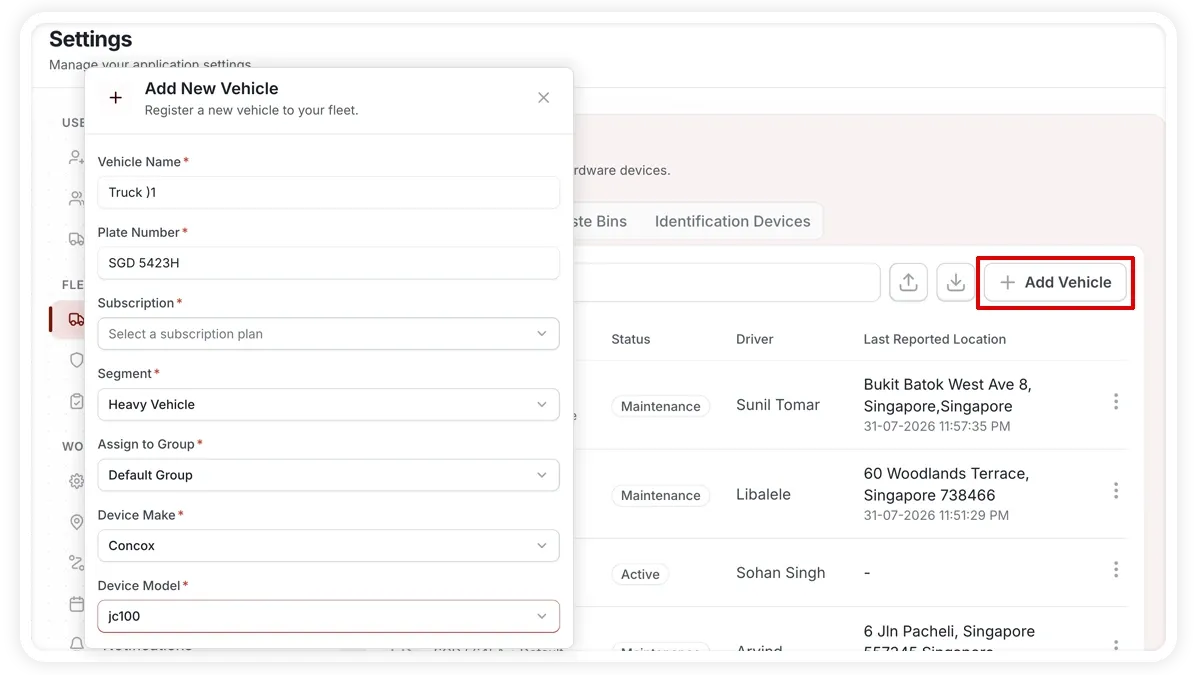
How to edit a vehicle's details
- Go to Settings > Vehicles (Vehicles+).
- Select the vehicle you want to change.
- Update the fields you need — plate number, type, segment, group, fuel type, and assigned driver.
- Save your changes.
You can also add, import, and export vehicles from this page for bulk updates.
What the tabbed page covers
- Vehicles — the core details above, plus add, import, and export.
- Trailers — manage trailers.
- Waste Bins — manage waste bins.
- Identification Devices — manage identification devices.
- Remote Immobilisation — manage remote immobilisation.
Frequently asked questions
Who can edit vehicle details?
This is role-gated — only Owner or Admin users can edit vehicle details.
Where do I set up sensors and hardware for a vehicle?
Deep per-vehicle hardware and sensor setup lives in Add-ons & Sensors, not on this page.
Related
Next
Group Permission Templates
Apply an Operator, Observer, or Admin template to a group's Permissions tab, then fine-tune the View, Edit, Create, and Delete toggles per capability.
More in Settings & Admin
Didn't find what you needed?Contact support