Published Aug 2026
Set the Default Landing Page
The default landing page is the first screen users see after they sign in. Set it, along with the default map view and map provider, in platform-wide defaults.
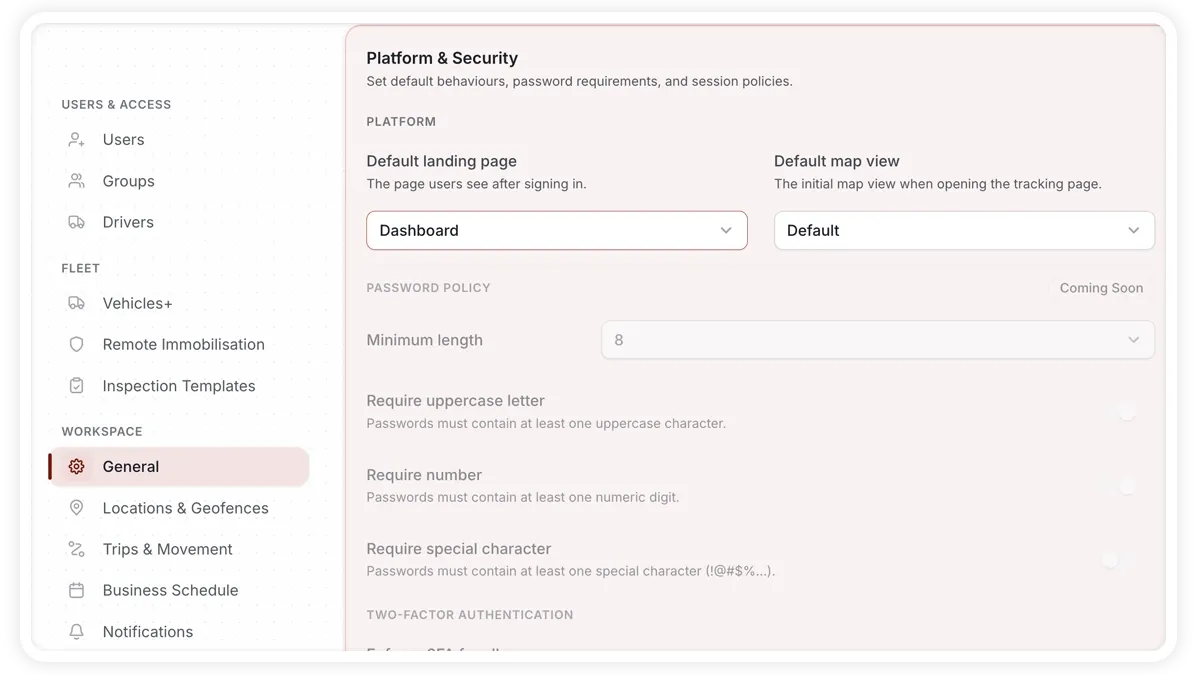
How to set the default landing page
- Open Settings > General (Platform-Wide Defaults).
- Choose the Default landing page.
- Set the default map view and map provider.
- Save your changes.
What you can set
- Default landing page — Dashboard, Live Tracking, Reports, or Fleet Overview.
- Default map view — the map view users start on.
- Map provider — Google or Mapbox.
Frequently asked questions
Which landing pages can I choose?
Dashboard, Live Tracking, Reports, or Fleet Overview.
Can I switch the map provider?
Yes. The default map provider can be set to Google or Mapbox in the same platform-wide defaults.
Related
Next
Out-of-Hours Detection
Once business hours are set in Settings > Business Schedule, AVLView flags activity outside them — powering After-Hours alerts and out-of-hours columns in reports.
More in Settings & Admin
Didn't find what you needed?Contact support