Published Aug 2026
Update Driver Details
Keep each driver's record current so contact details, licence dates, and vehicle assignments stay accurate. You edit drivers from Settings > Drivers.
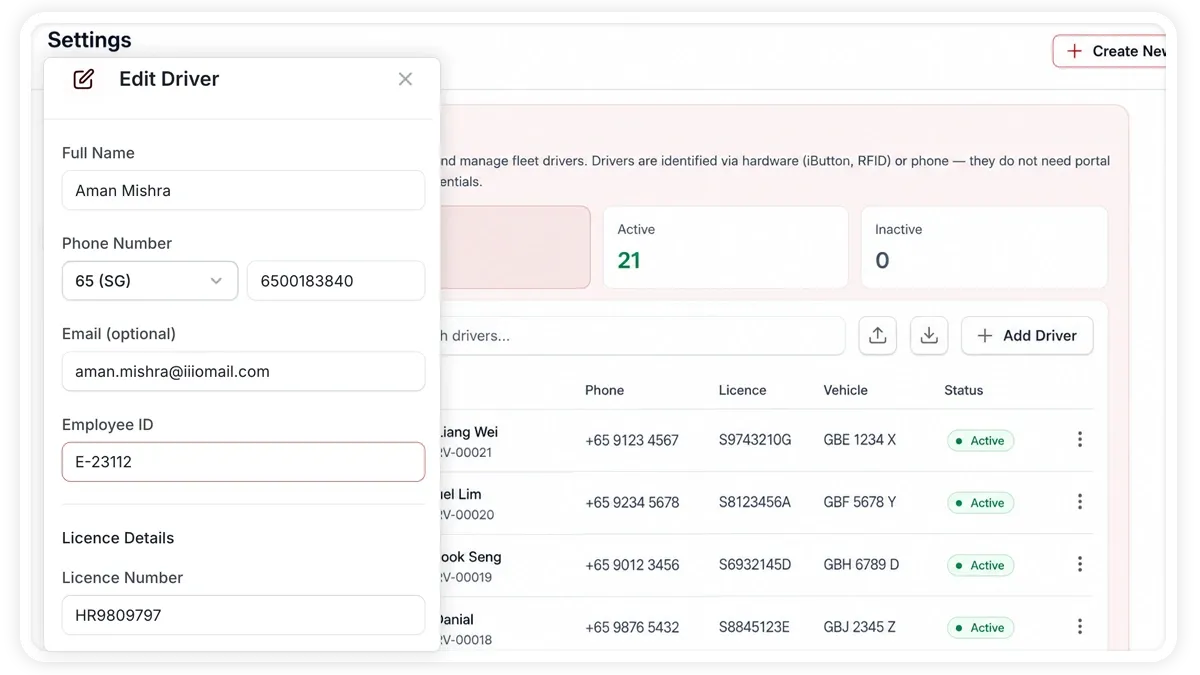
How to update a driver's details
- Go to Settings > Drivers and open the driver you want to change.
- Update any of their details, such as name, phone, or email.
- Adjust the vehicle assignment if the driver has changed vehicles.
- Save your changes.
What you can update
- Name — the driver's full name.
- Phone — the driver's contact number.
- Email — the driver's email address.
- Employee ID — your internal reference for the driver.
- Licence details — including the licence expiry date.
- Vehicle assignment — the vehicle the driver is linked to.
Frequently asked questions
Why should I keep the licence expiry date current?
The licence expiry date feeds the licence-expiry reminder, so keeping it accurate ensures you are warned before a driver's licence lapses.
Related
Next
Change Your Password
Change your own password from your profile. The org-wide password policy sets the length and character requirements.
More in Settings & Admin
Didn't find what you needed?Contact support