Join 43,000+ fleet owners tracking smarter.

Start Freeor book a live demo
AVLView

GPS fleet tracking trusted by 43,000+ fleet owners worldwide. Automate operations, cut costs, and scale effortlessly.

GDPR Compliant
Singapore • 11 Countries Worldwide
Philippines•India
support@avlview.com
+65 8228 4559

Fleet tips, straight to your inbox

No spam, unsubscribe anytime.

support@avlview.com+65 8228 4559
Product
  • Fleet Tracking
  • Driver Safety
  • Fuel Monitoring
  • Maintenance
  • Geofencing
  • Landmarks & POIs
  • Reports & Alerts
  • Fleet Capacity
  • API Integration
Solutions
  • Partner Program50-75% margins
Resources
  • Blog
  • Help Center
  • API Reference
Company
  • About Us
  • Become a Partner
  • Contact
  • Pricing
Locations
  • Dubai
  • Riyadh
  • Singapore
  • India
  • Philippines
  • USA

© 2026 AVLView. All rights reserved.

Privacy PolicyTerms of ServiceEULACookie Policy

We use cookies to improve your experience and analyse site traffic. Cookie Policy

AVLView
Pricing
🇸🇬+65 8228 4559
العربيةLogin
Getting Started
Alerts & Reminders
Maps & Geofencing
Supported Devices
Reports
Analytics
Service & Maintenance
Trip Scheduling
Dashboard
Settings & Admin
  • Settings Overview
  • Invite & Manage Users
  • User Roles & Permissions
  • Create & Manage Groups
  • Add & Manage Drivers
  • Edit Vehicle Details
  • Group Permission Templates
  • Vehicle Add-ons & Sensors
  • Remote Immobilisation
  • Branding: Logo & Custom URL
  • Business Hours & Shifts
  • Inspection Templates
  • Audit Log
  • Developer API & API Keys
  • Notification Preferences
  • Set a Vehicle Speed Limit
  • Move Vehicles Between Groups
  • Update Driver Details
  • Change Your Password
  • Reset a Forgotten Password
  • View User Login Sessions
  • View User Activity
  • Verify Your Email & Mobile
  • Update Your Email
  • Update Your Mobile Number
  • Roaming Profile for Cross-Border Trucks
  • Set the Default Landing Page
  • Out-of-Hours Detection
  • Regional & Language Settings
Troubleshooting
What's New
Settings & Admin
Published Jul 2026

Regional & Language Settings

On this page

  • How to set your regional and language options
  • What you can set
  • Frequently asked questions
  • Related

Regional and locale settings control how dates, units, currency, and numbers appear across AVLView, and which language is used in your offline and emailed reports. Set them once so everything reads the way your team expects.
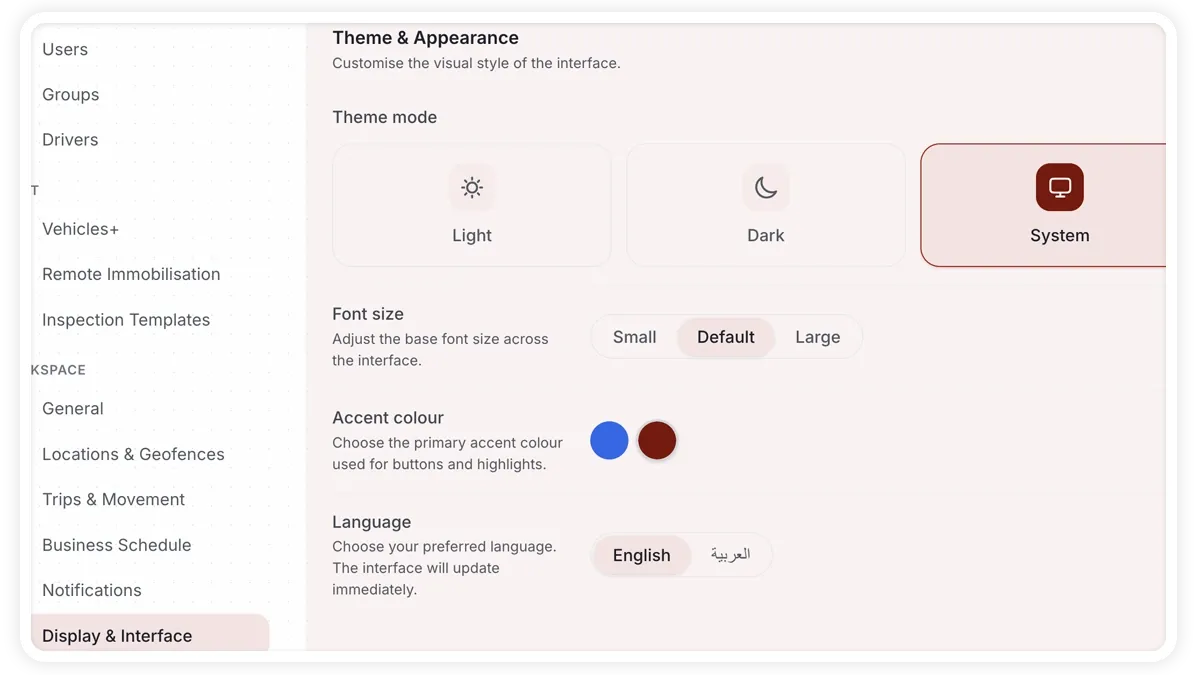
🖼️ IMAGE PLACEHOLDER — supplied by design

Dimensions: 1200 × 675 px (16:9) · PNG or WebP · under 200 KB

Shows: The General settings screen with the Regional & Locale options for timezone, units, currency, and language.

Alt text: AVLView General settings showing regional, unit, currency, and language options.

How to set your regional and language options

  1. Go to Settings > General (Regional & Locale).
  2. Choose your timezone and date/time format (12-hour or 24-hour).
  3. Pick the measurement system and units for speed, distance, volume, and temperature.
  4. Set your currency and number format.
  5. Choose the language, including the language used in offline and emailed reports, then save.

What you can set

  • Timezone — the zone used for timestamps across the platform.
  • Date/time format — how dates display, and whether time is 12-hour or 24-hour.
  • Measurement system — metric or imperial.
  • Units — speed, distance, volume, and temperature.
  • Currency — the currency shown for costs and values.
  • Number format — how numbers are grouped and displayed.
  • Language — the interface language and the language used in offline/emailed reports.

Frequently asked questions

Does the language setting change my emailed reports too?

Yes. The language you choose here also applies to the offline and emailed reports AVLView sends, so recipients read them in the language you set.

Related

  • Set Work Hours
  • Set the Application Landing Page

More in Settings & Admin

  • Settings Overview
  • Invite & Manage Users
  • User Roles & Permissions
  • Create & Manage Groups
  • Add & Manage Drivers
Didn't find what you needed?Contact support

In this guide

  • How to set your regional and language options
  • What you can set
  • Frequently asked questions
  • Related
Need a hand?

Talk to our team in your language.

Contact support