Published Jul 2026
Invite & Manage Users
Portal users are the people who sign in to AVLView to view vehicles, run reports, and act on alerts. You manage them all from Settings > Users.
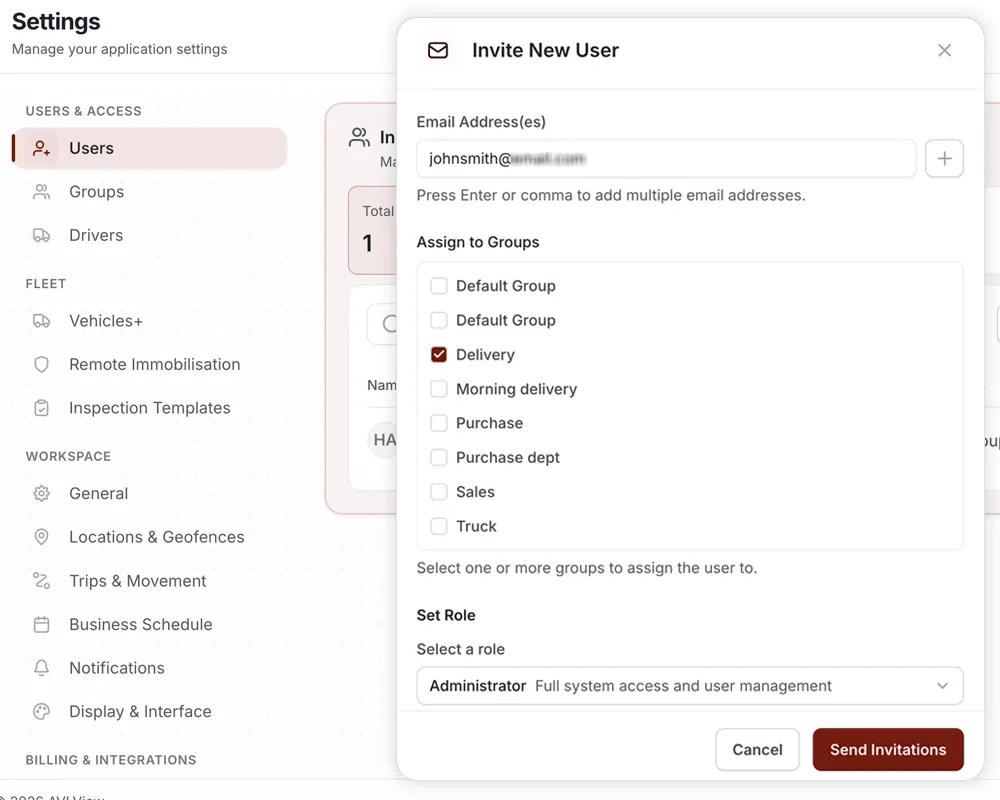
How to invite users
- Go to Settings > Users and select Invite users.
- Enter one or several email addresses to invite people in a single batch.
- Assign the invitees to the vehicle groups they should see.
- Set a role that controls what they can do.
- Add an optional message, then send the invite.
What you can set for each user
- Email — the address the invitation and sign-in link are sent to.
- Groups — the vehicle groups the user is allowed to access.
- Role — Owner (full access, cannot be limited), Admin, Operator, or Observer.
- Message — an optional note included in the invitation email.
Managing existing and pending users
- Edit a user — change their groups or role at any time.
- Resend or revoke invites — for anyone who has not yet accepted a pending invitation.
- Remove users — revoke portal access when someone leaves.
- Search and filter — narrow the list by status or by group.
Open any user to see their detail view, which has three tabs: Overview, Vehicles & Access, and Permissions (the effective permissions granted or denied by their role and group).
Frequently asked questions
Are portal users the same as drivers?
No. Users are portal logins for people who sign in to AVLView. Drivers are separate records managed in Settings > Drivers.
Can I change the Owner's access?
No. The Owner role always has full access and cannot be limited. To grant narrower access, assign Admin, Operator, or Observer instead.
Related
Next
User Roles & Permissions
Learn how AVLView roles and group permissions decide what each user can view and do.
More in Settings & Admin
Didn't find what you needed?Contact support