Published Aug 2026
Add & Manage Drivers
Drivers are the people who operate your vehicles. Unlike users, they don't sign in to AVLView — they're identified by hardware or phone — so managing them is quick.
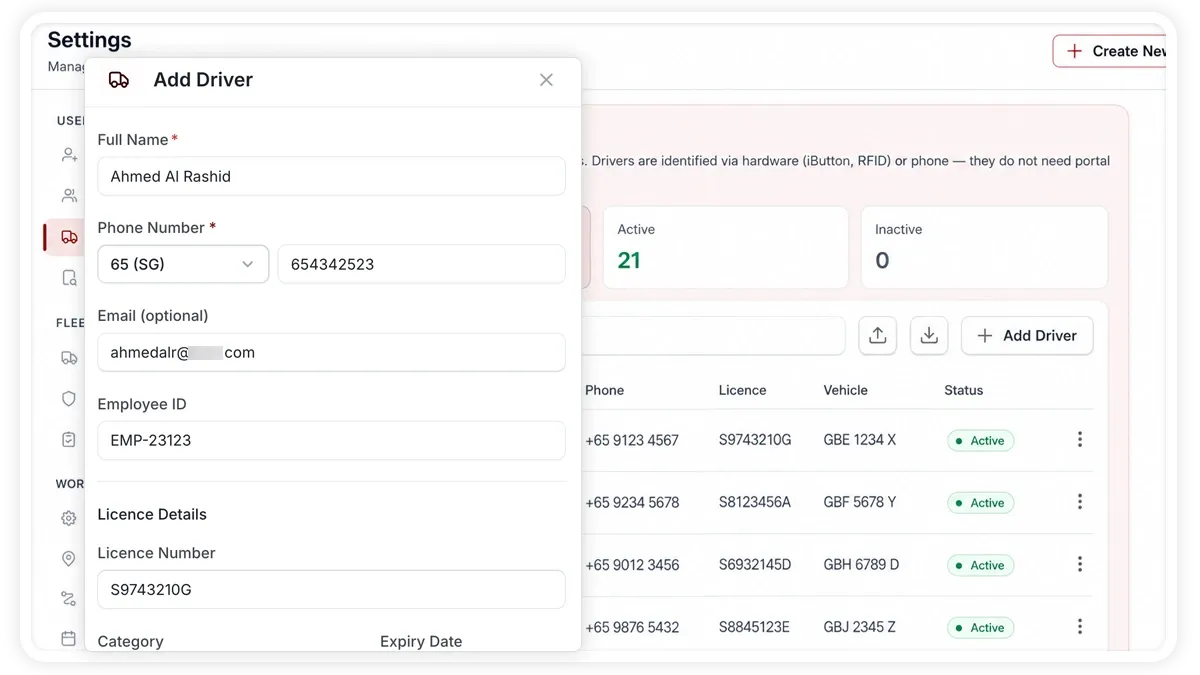
How to add a driver
- Go to Settings > Drivers.
- Select Add driver.
- Enter the driver's details (name and phone are the essentials).
- Save. The driver is now available to assign to vehicles and appears in driver-based reports.
The fields you can set
- Name — the driver's full name.
- Phone — used for identification and contact.
- Email — optional.
- Employee ID — your internal reference.
- Licence number, category, and expiry — track credentials and upcoming renewals.
Edit, deactivate, or remove a driver
- Edit — update any detail at any time.
- Deactivate — keep the record but take the driver out of active use.
- Remove — deletes the driver; this also unlinks their hardware IDs and vehicle assignments.
Bulk import from a spreadsheet
- Select Import on the Drivers screen.
- Download the sample template and fill it in (xlsx, xls, or csv).
- Upload the file and map your columns to the driver fields.
- Confirm to create the drivers in one pass.
Frequently asked questions
How are drivers identified automatically?
Automatic identification relies on driver-ID hardware — an iButton or RFID tag — fitted to the vehicle, or on the driver's phone. Without that hardware, drivers can still be assigned manually.
How is a driver different from a user?
A driver operates vehicles and does not need a portal login. A user signs in to AVLView to view data. They're managed in separate sections.
Related
Next
Edit Vehicle Details
Add, edit, import, and export vehicles in AVLView — update plate number, type, segment, group, fuel type, and driver.
More in Settings & Admin
Didn't find what you needed?Contact support