Published Aug 2026
Remote Immobilisation
Remote immobilisation lets you cut a vehicle's ability to move by sending a command from AVLView. You manage it from Settings > Remote Immobilisation.
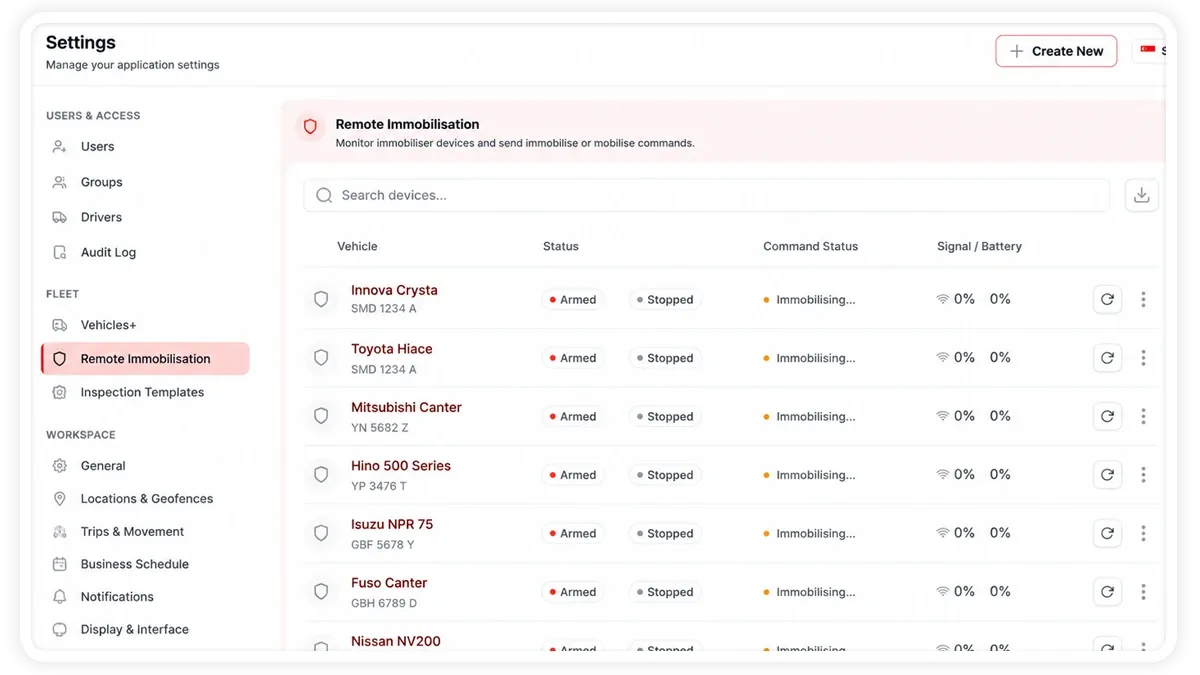
How to immobilise or mobilise a vehicle
- Go to Settings > Remote Immobilisation to see the device table.
- Check each immobiliser's arm status, signal, and battery.
- Choose Immobilise or Mobilise for the vehicle you want to control.
- Confirm the action in the confirm dialog to send the command.
What the device table and detail view show
- Arm status — whether each immobiliser is Armed or Unarmed.
- Signal — the device's connection strength.
- Battery — the device's battery level.
- Safety Verification Test — available in a device's detail view to confirm the immobiliser is wired and responding correctly.
- Activity log — a record of immobilise and mobilise commands for the device.
Safety checks prevent activation while the vehicle is moving, so an immobilise command will not take effect on a moving vehicle.
Frequently asked questions
Is any hardware required before I can use remote immobilisation?
Yes. A certified technician must first wire an immobiliser relay into the vehicle's ignition or fuel circuit. Remote immobilisation will not work until this hardware is installed.
Can I immobilise a vehicle while it is driving?
No. Built-in safety checks prevent activation while the vehicle is moving.
Related
Next
Branding: Logo & Custom URL
Add your company logo, favicon, and an embeddable login form in AVLView to personalise the workspace for your team and customers.
More in Settings & Admin
Didn't find what you needed?Contact support