Join 43,000+ fleet owners tracking smarter.

Start Freeor book a live demo
AVLView

GPS fleet tracking trusted by 43,000+ fleet owners worldwide. Automate operations, cut costs, and scale effortlessly.

GDPR Compliant
Singapore • 11 Countries Worldwide
Philippines•India
support@avlview.com
+65 8228 4559

Fleet tips, straight to your inbox

No spam, unsubscribe anytime.

support@avlview.com+65 8228 4559
Product
  • Fleet Tracking
  • Driver Safety
  • Fuel Monitoring
  • Maintenance
  • Geofencing
  • Landmarks & POIs
  • Reports & Alerts
  • Fleet Capacity
  • API Integration
Solutions
  • Partner Program50-75% margins
Resources
  • Blog
  • Help Center
  • API Reference
Company
  • About Us
  • Become a Partner
  • Contact
  • Pricing
Locations
  • Dubai
  • Riyadh
  • Singapore
  • India
  • Philippines
  • USA

© 2026 AVLView. All rights reserved.

Privacy PolicyTerms of ServiceEULACookie Policy

We use cookies to improve your experience and analyse site traffic. Cookie Policy

AVLView
Pricing
🇸🇬+65 8228 4559
العربيةLogin
Getting Started
Alerts & Reminders
Maps & Geofencing
Supported Devices
Reports
  • Reports Overview
  • Vehicle Timeline
  • Fleet Activity
  • Trip - Ignition/Stoppage
  • Live Fleet Status
  • First Movement
  • Unplanned Stoppage
  • End of Day Fleet Summary
  • Speeding
  • Driver Safety & Performance
  • Driver Hours & Shift Compliance
  • Driver Cost & Liability
  • Fleet Cost Per Kilometre
  • Idle Time Ranking
  • Fuel Anomaly & Theft Detection
  • POI Visit
  • Geofence Breach
  • Compliance & Liability Exposure
  • Fleet ROI & Utilisation Score
  • Maintenance Cost vs Vehicle Age
  • Asset Performance Scorecard
  • Temperature Overview
  • Temperature Exceptions
  • Cold Chain Certificate
  • Crane Usage
  • Equipment Usage
  • Security Events
  • Fleet P&L Summary
Analytics
Service & Maintenance
Trip Scheduling
Dashboard
Settings & Admin
Troubleshooting
What's New
Reports
Published Jul 2026

Trip - Ignition/Stoppage

On this page

  • What the report shows
  • How to run it
  • Schedule it
  • Frequently asked questions
  • Related reports

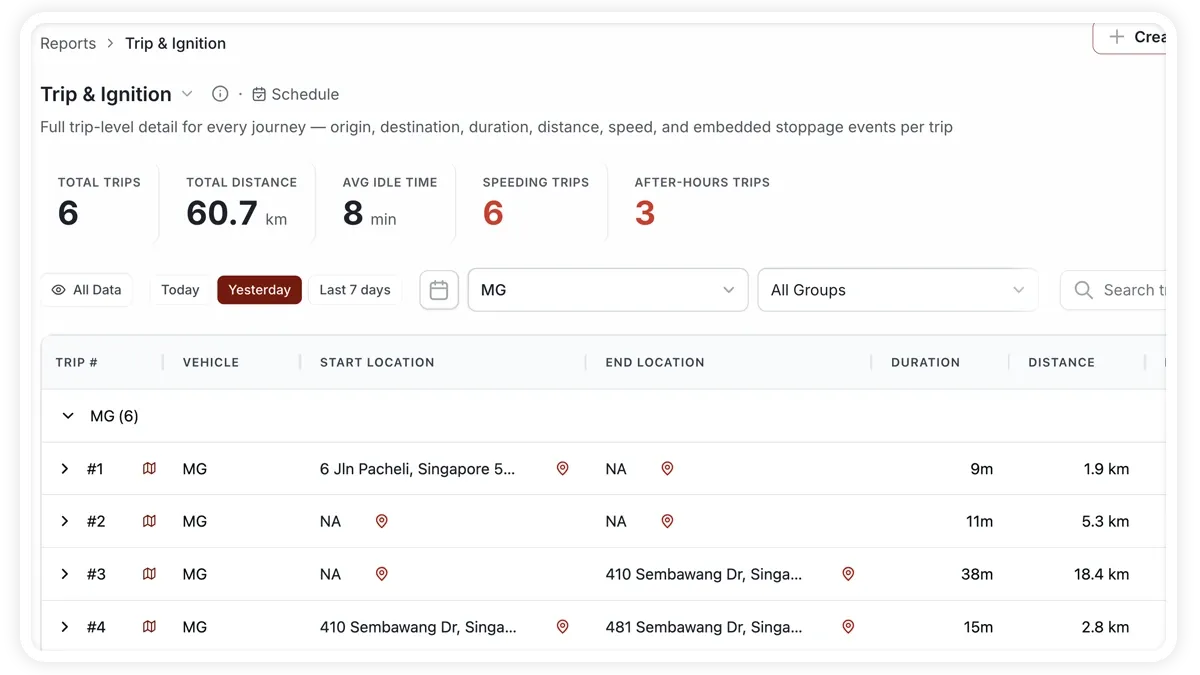
The Trip - Ignition/Stoppage report breaks the period into individual journeys, from ignition on to ignition off, and lists the full detail of each — where it started and ended, how long it took, how far it went and how fast — with every stoppage during the trip shown inline. It is the report to reach for when you need to reconstruct exactly how a day of driving unfolded.
🖼️ IMAGE PLACEHOLDER — supplied by design

Dimensions: 1200 × 900 px (4:3) · PNG or WebP · under 200 KB

Shows: The Trip - Ignition/Stoppage report — an expandable trip list with origin, destination, duration, distance and speed columns, inline stoppage rows under each trip, and the summary tiles for total trips, average distance and longest trip.

Alt text: Trip Ignition and Stoppage report showing per-trip detail with embedded stoppage events

What the report shows

Each run details every trip and totals the journey figures:

  • Total Trips — the number of ignition-to-ignition journeys in the period.
  • Avg Trip Distance — the average distance covered per journey.
  • Avg Trip Duration — the average time each journey took.
  • Total Distance — the combined distance across all trips.
  • Avg Stops/Trip — the average number of stoppages within each journey.
  • Longest Trip — the single longest journey in the period.

How to run it

  1. Open Reports and choose the Operations category (or search “trip”).
  2. Select Trip - Ignition/Stoppage.
  3. Set the date range you want.
  4. Click View to see it on screen, or Download for a PDF or Excel copy.

Schedule it

Run this report daily for a per-trip record of the fleet. Use the Scheduled tab to have the previous day's trips emailed each morning, so dispatch and operations always have the detail on hand.

Frequently asked questions

How is a trip defined?

A trip runs from ignition on to ignition off. Any stationary period with the engine still running is captured as a stoppage inside that trip rather than ending it.

What is the difference between this and the Vehicle Timeline?

This report is organised trip by trip with stoppages nested inside each journey, while the Vehicle Timeline presents one continuous chronological stream of all events across the day.

Related reports

  • Vehicle Timeline
  • Unplanned Stoppage
  • Fleet Activity
Next
Live Fleet Status
A real-time, auto-refreshing snapshot of every vehicle — current state, location, driver and active alerts — that loads in under three seconds.
Continue

Learn more about this feature

Explore feature

More in Reports

  • Reports Overview
  • Vehicle Timeline
  • Fleet Activity
  • Live Fleet Status
  • First Movement
Didn't find what you needed?Contact support

In this guide

  • What the report shows
  • How to run it
  • Schedule it
  • Frequently asked questions
  • Related reports
Need a hand?

Talk to our team in your language.

Contact support