Vehicle Timeline
The Vehicle Timeline report lays out a chronological event stream for each vehicle — every trip, idle, stop and alert in the order it happened, with times and locations. It is built for fleet managers who need to investigate an incident or verify that a route was actually driven.
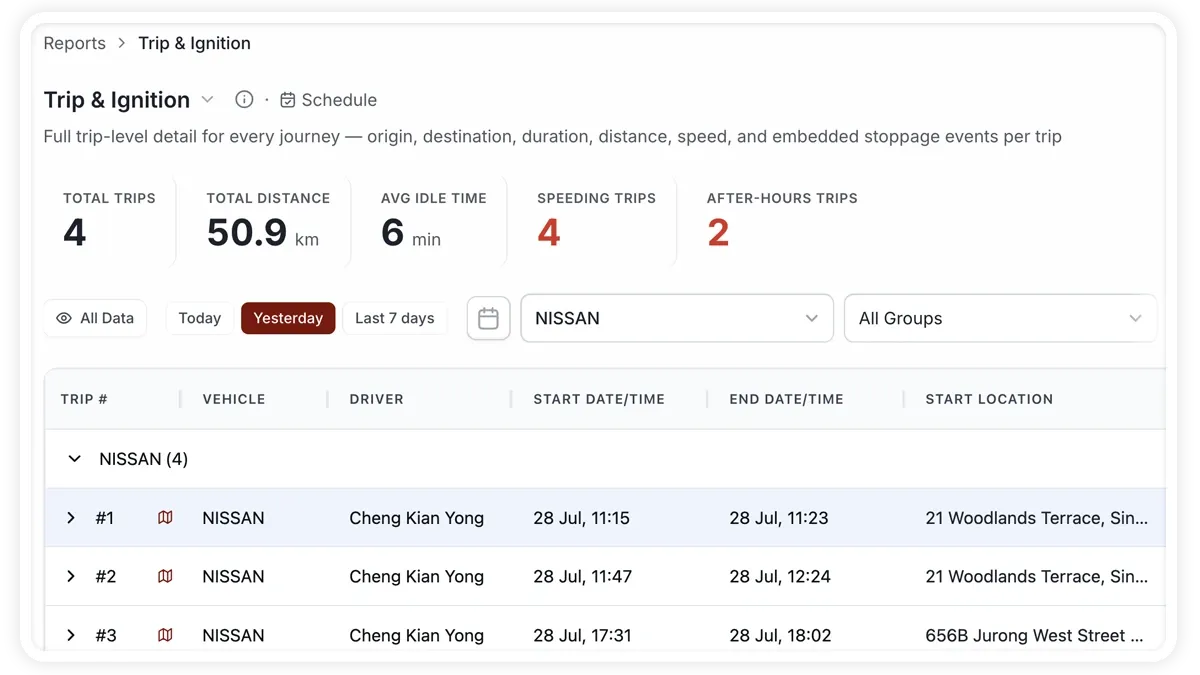
What the report shows
Each run reconstructs the vehicle's day, event by event, and totals the key figures:
- Active Vehicles — how many vehicles reported activity in the period.
- Total Trips — the number of journeys captured across the timeline.
- Total Distance — the combined distance driven over the period.
- Avg Utilisation — the average share of time each vehicle was in use.
- Total Idle Time — the combined time spent idling with the engine on.
- Alerts Triggered — the count of alerts raised along the timeline, such as overspeed or geofence events.
How to run it
- Open Reports and choose the Operations category (or search “timeline”).
- Select Vehicle Timeline.
- Set the date range you want.
- Click View to see it on screen, or Download for a PDF or Excel copy.
Schedule it
Run the Vehicle Timeline daily to keep an audit trail of fleet activity. Use the Scheduled tab to have the previous day's timeline emailed each morning, so a record is always on file without anyone running it.
Frequently asked questions
Where does the timeline data come from?
Each event is reconstructed from the vehicle's GPS position reports, so no extra sensors are needed — the more frequently the device reports, the finer the detail in the stream.
Can I use it to prove a route was driven?
Yes. Every trip and stop is time-stamped with its location, so you can confirm where a vehicle was at any point and verify that a planned route was followed.
Related reports
Learn more about this feature
Explore feature