Live Fleet Status
The Live Fleet Status report is a real-time snapshot of the whole fleet — the current state, location, driver and active alerts for every vehicle, refreshing automatically and loading in under three seconds. It is the screen dispatchers keep open all day to know, at a glance, what every vehicle is doing right now.
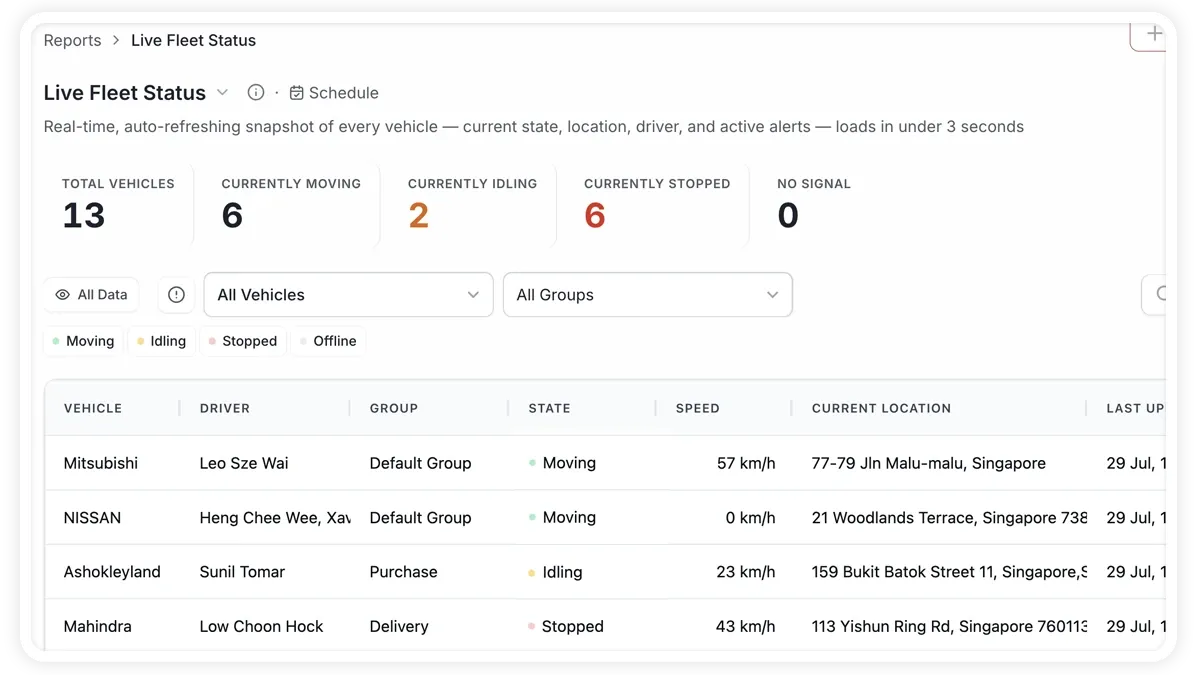
What the report shows
The snapshot tallies every vehicle by its current state:
- Currently Moving — vehicles in motion right now.
- Currently Idling — vehicles stationary with the engine running.
- Currently Stopped — vehicles parked with the engine off.
- Offline / No Signal — vehicles not reporting, out of coverage or powered down.
- Active Alerts — the number of alerts open across the fleet at this moment.
- Total Vehicles — the full count of vehicles in the fleet.
How to run it
- Open Reports and choose the Operations category (or search “live”).
- Select Live Fleet Status.
- It opens on the current live status — there is no date range to set; the view refreshes on its own.
- Click View to watch it on screen, or Download for a PDF or Excel copy of the current snapshot.
Frequently asked questions
How current is the data?
The snapshot updates as new position reports arrive from the devices, so it reflects the fleet in near real time — a vehicle shows as offline only when it stops reporting for longer than the expected interval.
Why does a vehicle show as offline?
Offline means the device has not reported recently — usually because it is out of network coverage, in an underground area, or powered down. It returns to a live state automatically once reporting resumes.
Related reports
Learn more about this feature
Explore feature