Join 43,000+ fleet owners tracking smarter.

Start Freeor book a live demo
AVLView

GPS fleet tracking trusted by 43,000+ fleet owners worldwide. Automate operations, cut costs, and scale effortlessly.

GDPR Compliant
Singapore • 11 Countries Worldwide
Philippines•India
support@avlview.com
+65 8228 4559

Fleet tips, straight to your inbox

No spam, unsubscribe anytime.

support@avlview.com+65 8228 4559
Product
  • Fleet Tracking
  • Driver Safety
  • Fuel Monitoring
  • Maintenance
  • Geofencing
  • Landmarks & POIs
  • Reports & Alerts
  • Fleet Capacity
  • API Integration
Solutions
  • Partner Program50-75% margins
Resources
  • Blog
  • Help Center
  • API Reference
Company
  • About Us
  • Become a Partner
  • Contact
  • Pricing
Locations
  • Dubai
  • Riyadh
  • Singapore
  • India
  • Philippines
  • USA

© 2026 AVLView. All rights reserved.

Privacy PolicyTerms of ServiceEULACookie Policy

We use cookies to improve your experience and analyse site traffic. Cookie Policy

AVLView
Pricing
🇸🇬+65 8228 4559
العربيةLogin
Getting Started
Alerts & Reminders
Maps & Geofencing
  • Maps & Geofencing Overview
  • Track Your Fleet Live on the Map
  • Create a Geofence (Zone)
  • Create a Geofence from a Place Boundary
  • Watch Dashcam Video with a Trip
  • Watch a Zone: Quick Alerts from the Map
  • Create a Route Fence
  • Manage Your Saved Places
  • Set a Temporary Alert Zone (Quick Alert)
  • Share a Completed Trip
  • Create a Point of Interest (POI)
  • Replay & Export Trip History
  • Share a Vehicle's Live Location
  • Find Nearby Vehicles
  • Get Directions to a Vehicle or Place
  • Map Layers, Views & Traffic
Supported Devices
Reports
Analytics
Service & Maintenance
Trip Scheduling
Dashboard
Settings & Admin
Troubleshooting
What's New
Maps & Geofencing
Published Jul 2026

Watch a Zone: Quick Alerts from the Map

On this page

  • How to watch a zone
  • Which trigger you get
  • Frequently asked questions
  • Related

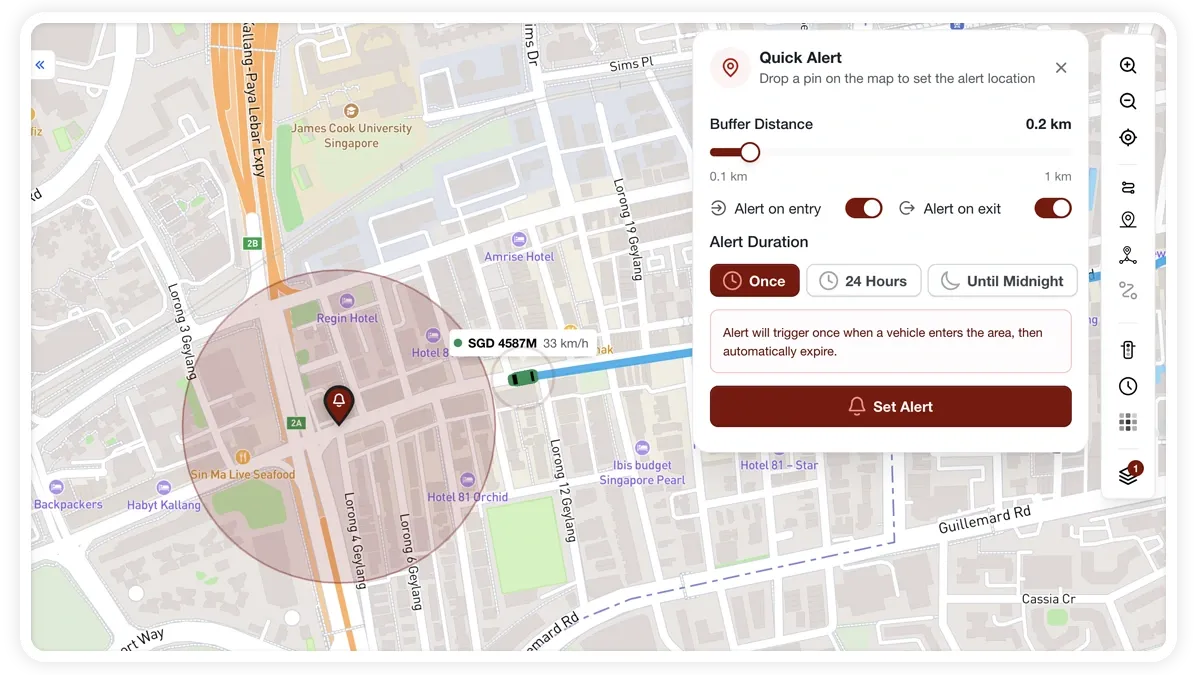
Watching a place is the fastest way to get alerts. Turning on Watch for a POI, zone or route fence instantly creates an alert rule for it and marks the place as Watching — no trip to the Alerts screen required.
🖼️ IMAGE PLACEHOLDER — supplied by design

Dimensions: 900 × 520 px · PNG or WebP · under 200 KB

Shows: The post-save panel for a POI with the Watch toggle switched on and a "Watching" state badge.

Alt text: MapView place panel with the Watch toggle turned on, showing the place is now being watched for alerts.

How to watch a zone

  1. Find the place you want to watch — a saved POI, a zone or a route fence.
  2. Flip the Watch toggle. You can do this from the panel that appears right after saving, or later from the Saved Places list.
  3. MapView creates a matching alert rule and marks the place Watching. That's it — the alert is now live.

Which trigger you get

MapView picks the trigger automatically from the place's category, so you get the alert that makes sense for that kind of location:

  • Restricted Area — Unauthorised Zone Entry (critical).
  • Depot / Other — Entry & Exit.
  • Warehouse, Fuel Station, Client Site, Loading Zone — Entry + Dwell.
  • Service Centre, Checkpoint, Rest Area — Entry only.
  • Route fences — Route Deviation.

Frequently asked questions

Can I change the trigger after watching?

Yes. The auto-created rule appears in Alerts → Rules as a quick rule. Open it there to fine-tune the trigger, timing or recipients.

When should I use a permanent rule or a temporary watch instead?

Watch is best for an always-on rule created in one tap. For a fully configurable, permanent rule build it in Alerts. For a short-term watch that expires on its own, use a temporary alert zone.

Related

  • Create a point of interest (POI)
  • Create a geofence
  • Set a temporary alert zone
  • Set up alerts
Next
Create a Route Fence
Draw a route fence in MapView — a corridor between two points that alerts when a vehicle strays. Build it from a past trip or from From/To addresses, then set exit and entry alerts.
Continue

Learn more about this feature

Explore feature

More in Maps & Geofencing

  • Maps & Geofencing Overview
  • Track Your Fleet Live on the Map
  • Create a Geofence (Zone)
  • Create a Geofence from a Place Boundary
  • Watch Dashcam Video with a Trip
Didn't find what you needed?Contact support

In this guide

  • How to watch a zone
  • Which trigger you get
  • Frequently asked questions
  • Related
Need a hand?

Talk to our team in your language.

Contact support