Published Jul 2026
Find Nearby Vehicles
When a job comes in, you need the closest available vehicle, not a scan of the whole fleet. MapView's Find Nearby tab lists the vehicles nearest a place in seconds.
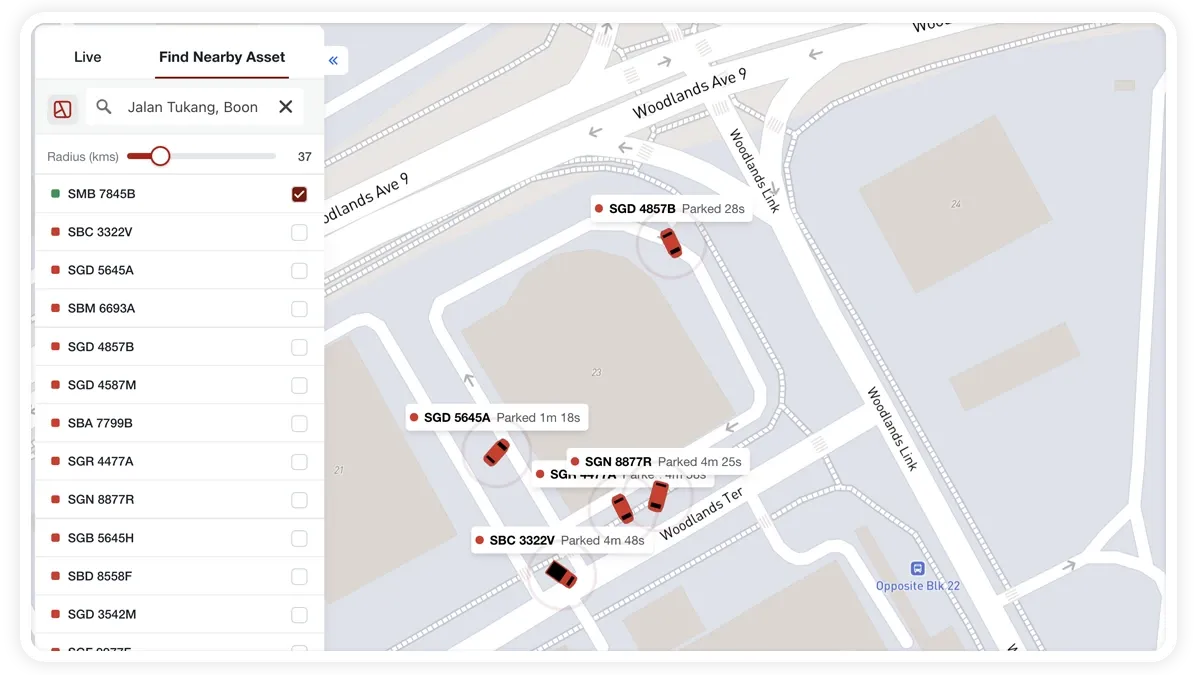
How to find nearby vehicles
- Open the sidebar and select the Find Nearby tab.
- Choose how to set the location:
- By POI — search for and select one of your saved POIs. MapView lists the vehicles near it and shows the POI's buffer radius on the map.
- By map location — search for any address or place, then drag the Radius slider (1–200 km) to widen or narrow the search area.
- Read the results list. The first (closest) result is auto-selected and focused on the map.
- Select any vehicle in the list to focus it on the map and dispatch it.
What you can set
- By POI — reuses a saved place; the search area is the POI's own buffer radius.
- By map location — search any address or place, no saving required.
- Radius slider — 1 to 200 km around a map location; matching vehicles update as you drag.
- Auto-focus — the nearest match is selected and centred automatically.
Frequently asked questions
How large an area can I search?
When you search by map location, the radius slider goes from 1 km up to 200 km. When you search by POI, the area is the POI's own buffer radius.
Which vehicle gets picked first?
The closest match is auto-selected and focused on the map, which makes it easy to dispatch the nearest vehicle to a job.
Related
Next
Get Directions to a Vehicle or Place
Use MapView's Go to (directions) tool to route from a vehicle to any destination and see ETA, distance, duration, and live traffic before you dispatch.
Learn more about this feature
Explore featureMore in Maps & Geofencing
Didn't find what you needed?Contact support