Join 43,000+ fleet owners tracking smarter.

Start Freeor book a live demo
AVLView

GPS fleet tracking trusted by 43,000+ fleet owners worldwide. Automate operations, cut costs, and scale effortlessly.

GDPR Compliant
Singapore • 11 Countries Worldwide
Philippines•India
support@avlview.com
+65 8228 4559

Fleet tips, straight to your inbox

No spam, unsubscribe anytime.

support@avlview.com+65 8228 4559
Product
  • Fleet Tracking
  • Driver Safety
  • Fuel Monitoring
  • Maintenance
  • Geofencing
  • Landmarks & POIs
  • Reports & Alerts
  • Fleet Capacity
  • API Integration
Solutions
  • Partner Program50-75% margins
Resources
  • Blog
  • Help Center
  • API Reference
Company
  • About Us
  • Become a Partner
  • Contact
  • Pricing
Locations
  • Dubai
  • Riyadh
  • Singapore
  • India
  • Philippines
  • USA

© 2026 AVLView. All rights reserved.

Privacy PolicyTerms of ServiceEULACookie Policy

We use cookies to improve your experience and analyse site traffic. Cookie Policy

AVLView
Pricing
🇸🇬+65 8228 4559
العربيةLogin
Getting Started
Alerts & Reminders
Maps & Geofencing
  • Maps & Geofencing Overview
  • Track Your Fleet Live on the Map
  • Create a Geofence (Zone)
  • Create a Geofence from a Place Boundary
  • Watch Dashcam Video with a Trip
  • Watch a Zone: Quick Alerts from the Map
  • Create a Route Fence
  • Manage Your Saved Places
  • Set a Temporary Alert Zone (Quick Alert)
  • Share a Completed Trip
  • Create a Point of Interest (POI)
  • Replay & Export Trip History
  • Share a Vehicle's Live Location
  • Find Nearby Vehicles
  • Get Directions to a Vehicle or Place
  • Map Layers, Views & Traffic
Supported Devices
Reports
Analytics
Service & Maintenance
Trip Scheduling
Dashboard
Settings & Admin
Troubleshooting
What's New
Maps & Geofencing
Published Jul 2026

Manage Your Saved Places

On this page

  • How to manage saved places
  • What you can do
  • Frequently asked questions
  • Related

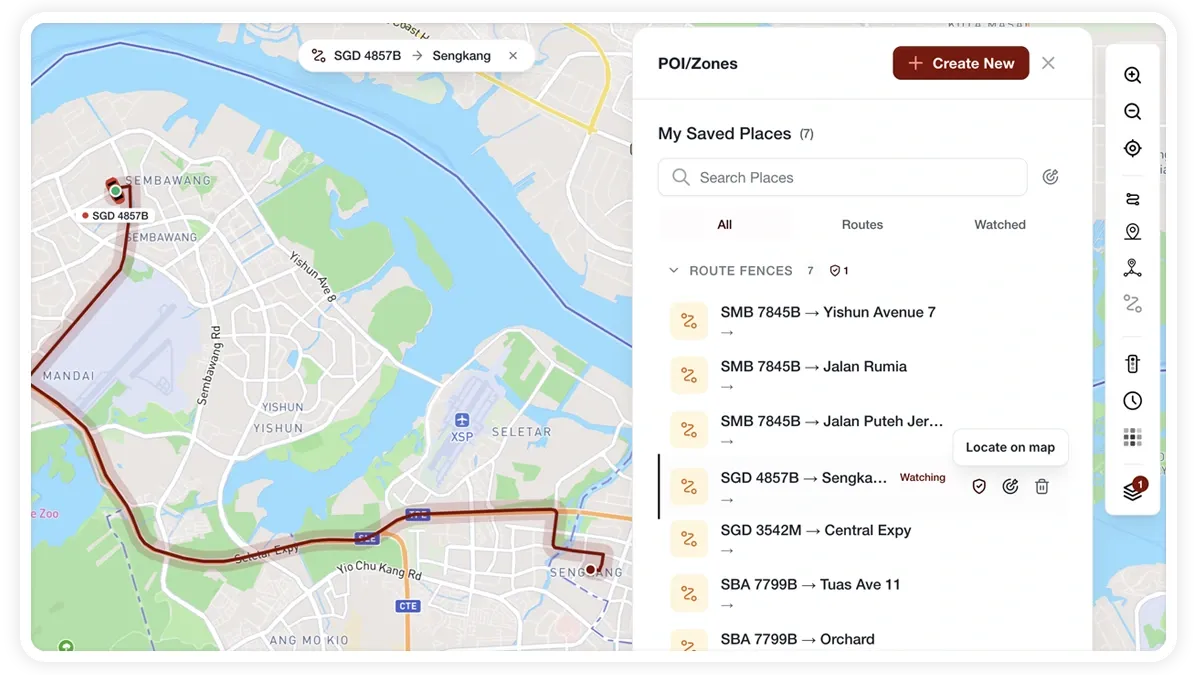
Every POI, zone, and route fence you create lives in one place: the Saved Places list in the POI tool. It opens here once you have saved places, and it is where you manage them all.
🖼️ IMAGE PLACEHOLDER — supplied by design

Dimensions: 1200 × 675 px (16:9) · PNG or WebP · under 200 KB

Shows: The MapView Saved Places list with the search box, filter pills, a Suggested for you section, and hover actions on a place.

Alt text: MapView Saved Places list with search, filter pills, and per-place hover actions.

How to manage saved places

  1. Open the POI tool. The Saved Places list appears once you have saved places.
  2. Find a place with fuzzy search, or narrow the list with the filter pills: All, POIs, Zones, Routes, or Watched.
  3. Turn on the In View filter to show only places inside the current map viewport.
  4. Hover a place to reveal its actions.
  5. Use Create New to add a POI, Zone/Geofence, or Route Fence.

What you can do

  • Suggested for you — recommends POIs from places your fleet visits often; save one inline with a name and category, or dismiss it.
  • Fuzzy search — finds places even with an approximate spelling.
  • Filter pills — All, POIs, Zones, Routes, or Watched.
  • In View filter — limits the list to the current map viewport.
  • Category-grouped list — places are grouped by category.
  • Hover actions — Locate on map, Get directions (POIs), Start/Stop watching (the shield), and Delete.
  • Create New — a dropdown to add a POI, Zone/Geofence, or Route Fence.

Frequently asked questions

What is the Suggested for you section?

It recommends POIs based on where your fleet visits often. Save a suggestion inline with a name and category, or dismiss it if it is not useful.

How do I start or stop watching a place?

Hover the place and use the shield action to start or stop watching it. You can also filter the list to Watched to see everything you are monitoring.

Related

  • Create a POI or Zone
  • Create a geofence (zone)
  • Create a route fence
Next
Set a Temporary Alert Zone (Quick Alert)
Drop a Quick Alert on the map to be notified when any vehicle enters or leaves a spot for a short window — no permanent geofence needed.
Continue

Learn more about this feature

Explore feature

More in Maps & Geofencing

  • Maps & Geofencing Overview
  • Track Your Fleet Live on the Map
  • Create a Geofence (Zone)
  • Create a Geofence from a Place Boundary
  • Watch Dashcam Video with a Trip
Didn't find what you needed?Contact support

In this guide

  • How to manage saved places
  • What you can do
  • Frequently asked questions
  • Related
Need a hand?

Talk to our team in your language.

Contact support