Join 43,000+ fleet owners tracking smarter.

Start Freeor book a live demo
AVLView

GPS fleet tracking trusted by 43,000+ fleet owners worldwide. Automate operations, cut costs, and scale effortlessly.

GDPR Compliant
Singapore • 11 Countries Worldwide
Philippines•India
support@avlview.com
+65 8228 4559

Fleet tips, straight to your inbox

No spam, unsubscribe anytime.

support@avlview.com+65 8228 4559
Product
  • Fleet Tracking
  • Driver Safety
  • Fuel Monitoring
  • Maintenance
  • Geofencing
  • Landmarks & POIs
  • Reports & Alerts
  • Fleet Capacity
  • API Integration
Solutions
  • Partner Program50-75% margins
Resources
  • Blog
  • Help Center
  • API Reference
Company
  • About Us
  • Become a Partner
  • Contact
  • Pricing
Locations
  • Dubai
  • Riyadh
  • Singapore
  • India
  • Philippines
  • USA

© 2026 AVLView. All rights reserved.

Privacy PolicyTerms of ServiceEULACookie Policy

We use cookies to improve your experience and analyse site traffic. Cookie Policy

AVLView
Pricing
🇸🇬+65 8228 4559
العربيةLogin
Getting Started
Alerts & Reminders
Maps & Geofencing
  • Maps & Geofencing Overview
  • Track Your Fleet Live on the Map
  • Create a Geofence (Zone)
  • Create a Geofence from a Place Boundary
  • Watch Dashcam Video with a Trip
  • Watch a Zone: Quick Alerts from the Map
  • Create a Route Fence
  • Manage Your Saved Places
  • Set a Temporary Alert Zone (Quick Alert)
  • Share a Completed Trip
  • Create a Point of Interest (POI)
  • Replay & Export Trip History
  • Share a Vehicle's Live Location
  • Find Nearby Vehicles
  • Get Directions to a Vehicle or Place
  • Map Layers, Views & Traffic
Supported Devices
Reports
Analytics
Service & Maintenance
Trip Scheduling
Dashboard
Settings & Admin
Troubleshooting
What's New
Maps & Geofencing
Published Jul 2026

Share a Completed Trip

On this page

  • How to share a completed trip
  • What you can set
  • Frequently asked questions
  • Related

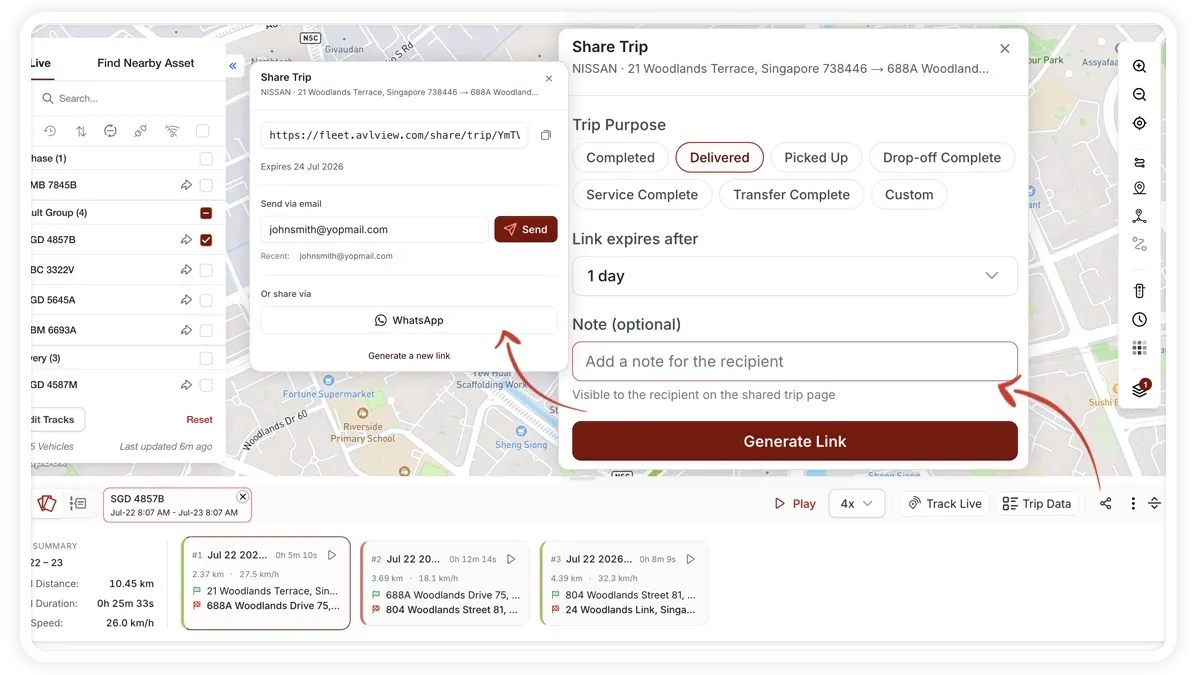
When a delivery is done or a job is complete, you can share that single trip with a customer or colleague. They get a clean, brand-neutral map of the route — no AVLView login required.
🖼️ IMAGE PLACEHOLDER — supplied by design

Dimensions: 900 × 520 px · PNG or WebP · under 200 KB

Shows: The Share-a-trip dialog with the purpose dropdown, expiry options, note field and the email / WhatsApp / copy-link actions.

Alt text: MapView share-a-trip dialog showing purpose and expiry options with email, WhatsApp and copy-link buttons.

How to share a completed trip

  1. Open the trip you want to share and choose Share.
  2. Set a purpose for the share — Completed, Delivered, Picked-up, Drop-off, Service, Transfer, or Custom.
  3. Choose an expiry for the link and add an optional note.
  4. Click Generate link. The link is copied automatically.
  5. Copy it again if needed, send it by email, or choose Share on WhatsApp.

What you can set

  • Purpose — the label the recipient sees: Completed, Delivered, Picked-up, Drop-off, Service, Transfer, or Custom.
  • Expiry — how long the link stays live: 1 Hour, 4 Hours, 12 Hours, 1 Day, 3 Days, 1 Week, or 2 Weeks.
  • Note — an optional message shown alongside the trip.

Frequently asked questions

What does the recipient see?

A brand-neutral map showing the trip route, its start and end, any stops, the status (delivered, in-progress and so on) and the distance and duration. No login is needed.

Do I have to retype email addresses each time?

No. Recent email recipients are remembered, so sending an update to the same customer is quick.

Related

  • Share a vehicle's live location
  • View a vehicle's track or history
Next
Create a Point of Interest (POI)
Drop a pin on the MapView map to save a point of interest — name it, pick a category and colour, set a buffer radius, and optionally watch it for alerts.
Continue

Learn more about this feature

Explore feature

More in Maps & Geofencing

  • Maps & Geofencing Overview
  • Track Your Fleet Live on the Map
  • Create a Geofence (Zone)
  • Create a Geofence from a Place Boundary
  • Watch Dashcam Video with a Trip
Didn't find what you needed?Contact support

In this guide

  • How to share a completed trip
  • What you can set
  • Frequently asked questions
  • Related
Need a hand?

Talk to our team in your language.

Contact support