Join 43,000+ fleet owners tracking smarter.

Start Freeor book a live demo
AVLView

GPS fleet tracking trusted by 43,000+ fleet owners worldwide. Automate operations, cut costs, and scale effortlessly.

GDPR Compliant
Singapore • 11 Countries Worldwide
Philippines•India
support@avlview.com
+65 8228 4559

Fleet tips, straight to your inbox

No spam, unsubscribe anytime.

support@avlview.com+65 8228 4559
Product
  • Fleet Tracking
  • Driver Safety
  • Fuel Monitoring
  • Maintenance
  • Geofencing
  • Landmarks & POIs
  • Reports & Alerts
  • Fleet Capacity
  • API Integration
Solutions
  • Partner Program50-75% margins
Resources
  • Blog
  • Help Center
  • API Reference
Company
  • About Us
  • Become a Partner
  • Contact
  • Pricing
Locations
  • Dubai
  • Riyadh
  • Singapore
  • India
  • Philippines
  • USA

© 2026 AVLView. All rights reserved.

Privacy PolicyTerms of ServiceEULACookie Policy

We use cookies to improve your experience and analyse site traffic. Cookie Policy

AVLView
Pricing
🇸🇬+65 8228 4559
العربيةLogin
Getting Started
Alerts & Reminders
Maps & Geofencing
  • Maps & Geofencing Overview
  • Track Your Fleet Live on the Map
  • Create a Geofence (Zone)
  • Create a Geofence from a Place Boundary
  • Watch Dashcam Video with a Trip
  • Watch a Zone: Quick Alerts from the Map
  • Create a Route Fence
  • Manage Your Saved Places
  • Set a Temporary Alert Zone (Quick Alert)
  • Share a Completed Trip
  • Create a Point of Interest (POI)
  • Replay & Export Trip History
  • Share a Vehicle's Live Location
  • Find Nearby Vehicles
  • Get Directions to a Vehicle or Place
  • Map Layers, Views & Traffic
Supported Devices
Reports
Analytics
Service & Maintenance
Trip Scheduling
Dashboard
Settings & Admin
Troubleshooting
What's New
Maps & Geofencing
Published Jul 2026

Replay & Export Trip History

On this page

  • How to replay a trip
  • Three ways to view the trips
  • The Trip Data deep-dive
  • How to export a trip
  • Frequently asked questions
  • Related

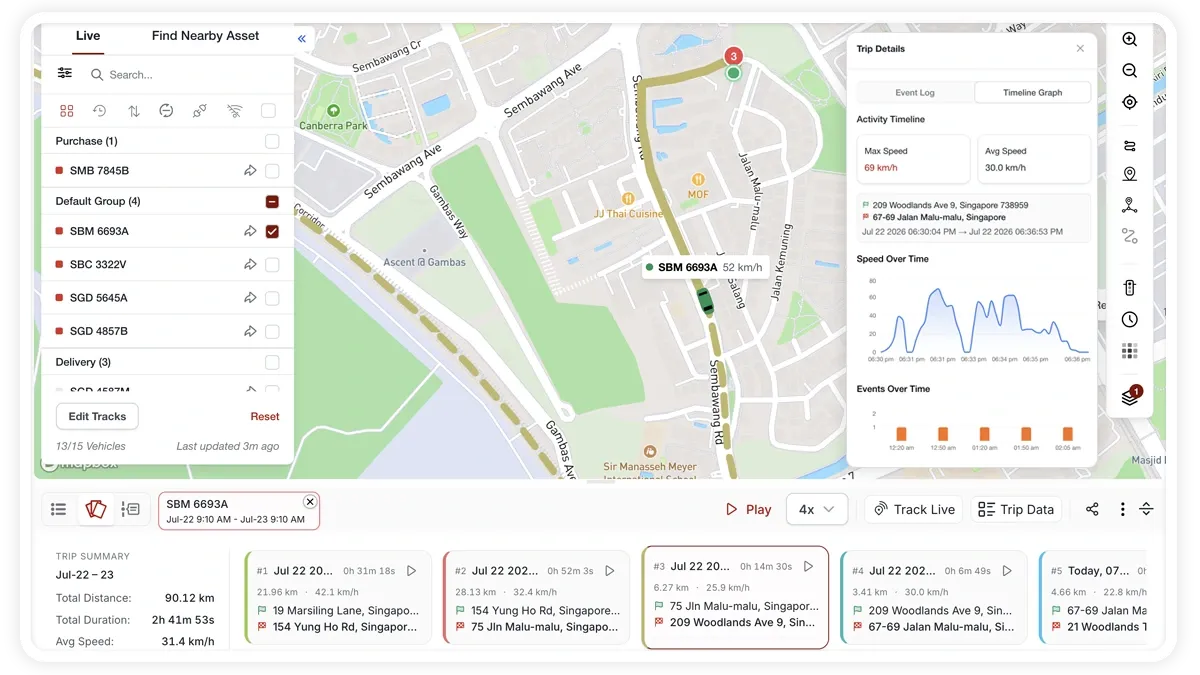
Trip history lets you replay where a vehicle went, review its speed and driving events, and export the trip for records or analysis — all from the MapView map.
🖼️ IMAGE PLACEHOLDER — supplied by design

Dimensions: 1200 × 675 px (16:9) · PNG or WebP · under 200 KB

Shows: The MapView trip-history view with a replayed route on the map, the bottom playback toolbar, and the Trip Data panel showing the speed graph and event log.

Alt text: AVLView trip history replay with playback controls and the Trip Data panel open.

How to replay a trip

  1. Select the vehicle (or vehicles) you want to review.
  2. Click View Tracks in the sidebar footer and choose a period to load the historical trips.
  3. The selected vehicles appear as date-range chips in the bottom toolbar.
  4. Use the playback controls to Play/Pause, change the speed (0.5x, 1x, 2x, 4x, 8x, or 16x), and toggle Track Live to jump back to live tracking.

Three ways to view the trips

  • Table — a list with a low→high heat-map legend and totals.
  • Cards — a timeline of trips as cards.
  • Weekly — a weekly timeline chart.

The Trip Data deep-dive

Open the Trip Data panel for a detailed look at a trip:

  • Timeline graph — max and average speed, speed over time, and events over time.
  • Summary — distance, duration, total events, and fuel used.
  • Event log — a searchable list by severity, covering harsh braking, harsh acceleration, speeding, idling, collision, ignition, and spot-fence events.

How to export a trip

  1. Open the … (more) menu.
  2. Choose Export KML to open the route in a mapping tool, or Export XLSX for a spreadsheet.

Frequently asked questions

Why are the fuel figures blank?

Fuel figures need a fuel sensor fitted to the vehicle. Without one, distance, duration, and events are still shown, but fuel used will be empty.

How fast can I replay a trip?

Playback speed goes from 0.5x up to 16x, so you can crawl through a tricky section or fast-forward a long journey.

Related

  • Watch dashcam video for a trip
  • Live-track vehicles on the map
Next
Share a Vehicle's Live Location
Share a vehicle's live location with anyone outside your account. Send an email invite or generate a link, set an expiry, add a destination, and the recipient sees a clean live map — no login.
Continue

Learn more about this feature

Explore feature

More in Maps & Geofencing

  • Maps & Geofencing Overview
  • Track Your Fleet Live on the Map
  • Create a Geofence (Zone)
  • Create a Geofence from a Place Boundary
  • Watch Dashcam Video with a Trip
Didn't find what you needed?Contact support

In this guide

  • How to replay a trip
  • Three ways to view the trips
  • The Trip Data deep-dive
  • How to export a trip
  • Frequently asked questions
  • Related
Need a hand?

Talk to our team in your language.

Contact support