Published Aug 2026
Track Fleet Costs in the Cost Center
The Cost Center (Services > Cost Center) is a unified expense ledger that combines fuel and service or other expenses in one view. Record every spend and it powers KPIs — Total Spend this month, Fuel Expenses as a percentage of total, and Average Transaction — plus deeper cost/km, fuel efficiency and anomaly analytics.
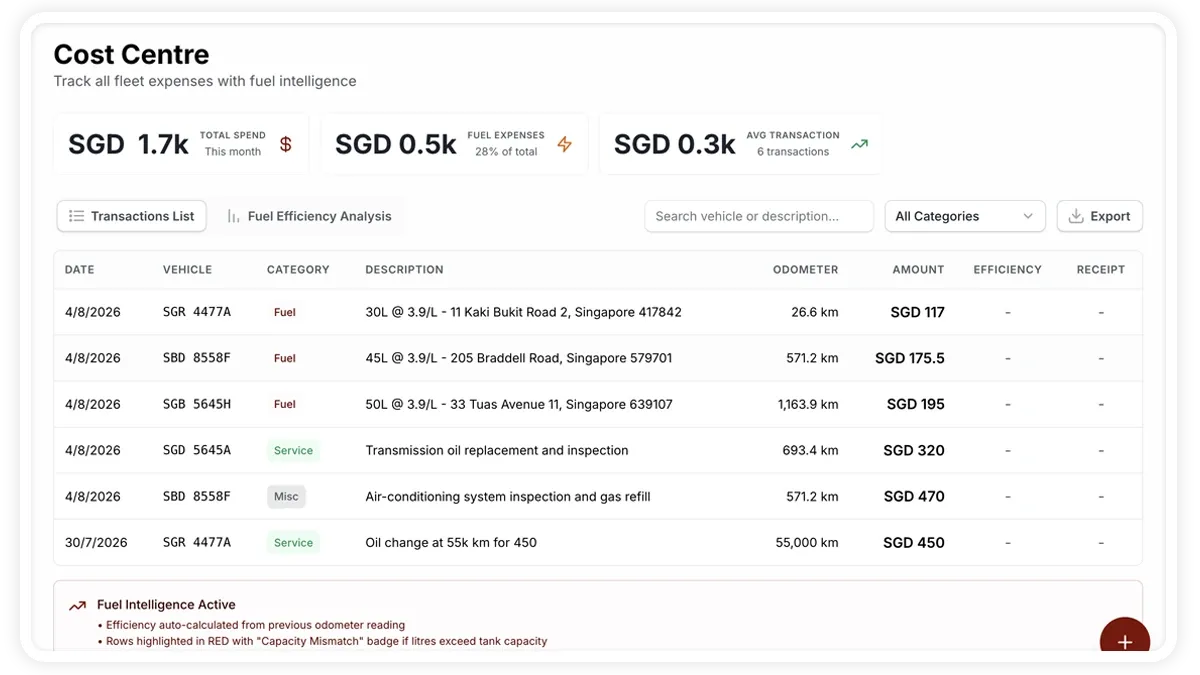
How to add a service expense
- Go to Services > Cost Center and choose to add an expense.
- Select the vehicle and the date.
- Enter the odometer reading.
- Pick a category — service, toll, parking or misc — then the matching sub-category (for service: Regular Service, Repair, Oil Change, Brake Service or Battery Replacement).
- Enter the amount and a short description, and attach a receipt if you have one.
- Save. The entry joins the ledger and updates the spend KPIs.
What you can record
- Vehicle — the vehicle the expense belongs to.
- Date — when the expense occurred.
- Odometer — the reading at the time, used for cost/km analytics.
- Category — service, toll, parking or misc.
- Sub-category — for service: Regular Service, Repair, Oil Change, Brake Service or Battery Replacement.
- Amount — the cost of the expense.
- Description — a short note about the expense.
- Receipt — an optional attachment for your records.
Frequently asked questions
How do I add a fuel entry?
Fuel entries are added in the same place as service expenses — see the fuel article for the fuel-specific fields.
What analytics does the Cost Center unlock?
Once you have data, the Cost Center powers cost per km, fuel efficiency and anomaly analysis, so unusual spend stands out against your fleet’s norms.
Related
Next
Set a Service or Document-Renewal Reminder
Set reminders for servicing by km, months, odometer or days, and auto-renewal alerts for insurance, permits, fitness, pollution and registration.
Learn more about this feature
Explore featureMore in Service & Maintenance
Didn't find what you needed?Contact support