Published Aug 2026
Log a Service or Maintenance Event
The Maintenance Hub keeps every service, repair, and inspection for your fleet in one place. Log an event in seconds with plain-language AI Smart Input, or fill in the full form when you need every detail.
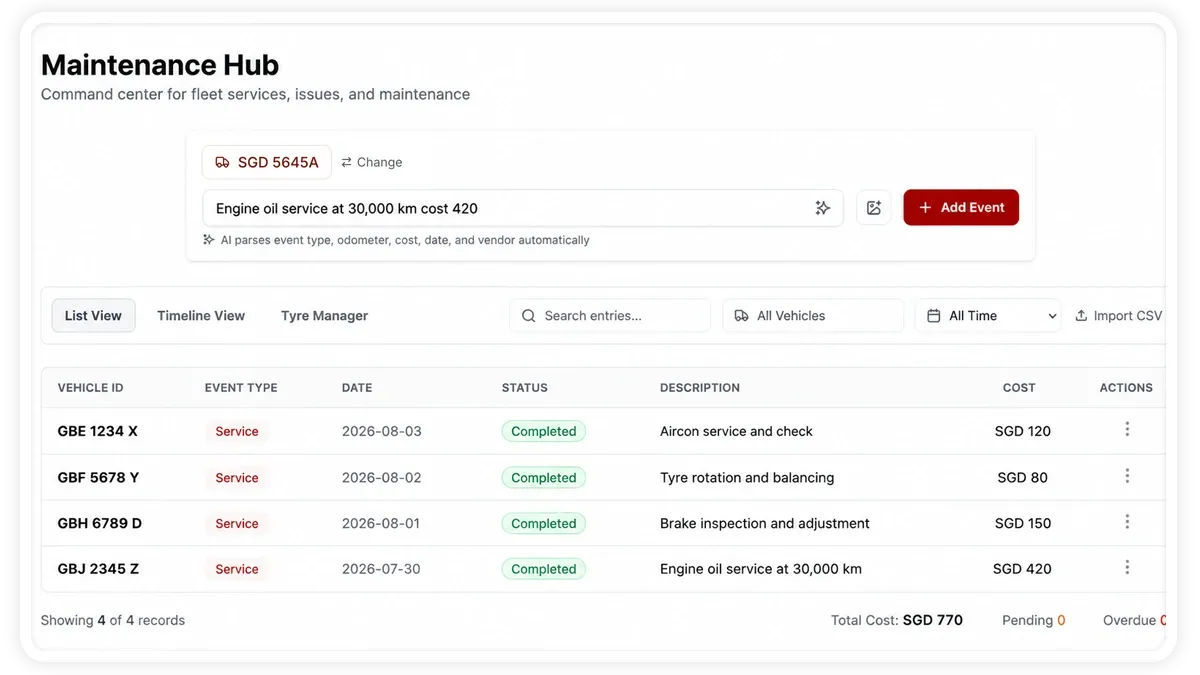
How to log a maintenance event
- Open Services > Maintenance to reach the Maintenance Hub.
- Choose a view: List for all events, the per-vehicle Timeline, or Tyre Manager.
- To log fast, type a plain-language entry in the AI Smart Input — the vehicle, what was done, and the cost — then submit.
- To capture every detail, add an event through the form instead.
- Pick the event type — service, issue, checkup, tyre, or fuel — fill in the fields, and save.
Fields you can record
- Vehicle — the vehicle the event belongs to.
- Event type — service, issue, checkup, tyre, or fuel.
- Date — when the event took place.
- Status — pending, completed, or overdue.
- Cost — the amount spent; the system flags a cost status of within-budget, market-rate, or above-market.
- Description — a short summary of the work.
- Odometer — the reading at the time of the event.
- Technician — who carried out the work.
- Notes and attachments — extra detail and supporting files.
- Next-due odometer and next-due date — when the next service falls due.
- Vendor — the workshop or supplier.
Frequently asked questions
Can I import past maintenance records in bulk?
Yes. Use Bulk Import Maintenance to bring in events from a CSV file instead of adding them one by one.
How do I narrow the list to one vehicle or period?
Filter by vehicle and by date range — 7d, 30d, 90d, 6m, or 1y — to focus on the events you need.
Related
Next
Track Fleet Costs in the Cost Center
Log fuel and service expenses in one ledger, watch spend KPIs, and export — the Cost Center unlocks cost/km, fuel efficiency and anomaly analytics.
Learn more about this feature
Explore featureMore in Service & Maintenance
Didn't find what you needed?Contact support