Join 43,000+ fleet owners tracking smarter.

Start Freeor book a live demo
AVLView

GPS fleet tracking trusted by 43,000+ fleet owners worldwide. Automate operations, cut costs, and scale effortlessly.

GDPR Compliant
Singapore • 11 Countries Worldwide
Philippines•India
support@avlview.com
+65 8228 4559

Fleet tips, straight to your inbox

No spam, unsubscribe anytime.

support@avlview.com+65 8228 4559
Product
  • Fleet Tracking
  • Driver Safety
  • Fuel Monitoring
  • Maintenance
  • Geofencing
  • Landmarks & POIs
  • Reports & Alerts
  • Fleet Capacity
  • API Integration
Solutions
  • Partner Program50-75% margins
Resources
  • Blog
  • Help Center
  • API Reference
Company
  • About Us
  • Become a Partner
  • Contact
  • Pricing
Locations
  • Dubai
  • Riyadh
  • Singapore
  • India
  • Philippines
  • USA

© 2026 AVLView. All rights reserved.

Privacy PolicyTerms of ServiceEULACookie Policy

We use cookies to improve your experience and analyse site traffic. Cookie Policy

AVLView
Pricing
🇸🇬+65 8228 4559
العربيةLogin
Getting Started
Alerts & Reminders
Maps & Geofencing
Supported Devices
Reports
Analytics
Service & Maintenance
Trip Scheduling
Dashboard
  • Dashboard Overview
  • Live Vehicle Status & the Fleet Grid
  • Read a Vehicle's Live Details
  • The Driver Scorecard
  • Run a Device Diagnostics Scan
  • Fleet Analytics on the Dashboard
  • Calibrate a Vehicle's Odometer
  • Service Reminders on the Dashboard
Settings & Admin
Troubleshooting
What's New
Dashboard
Published Jul 2026

Service Reminders on the Dashboard

On this page

  • How to use the Reminders tab
  • What you see
  • Frequently asked questions
  • Related

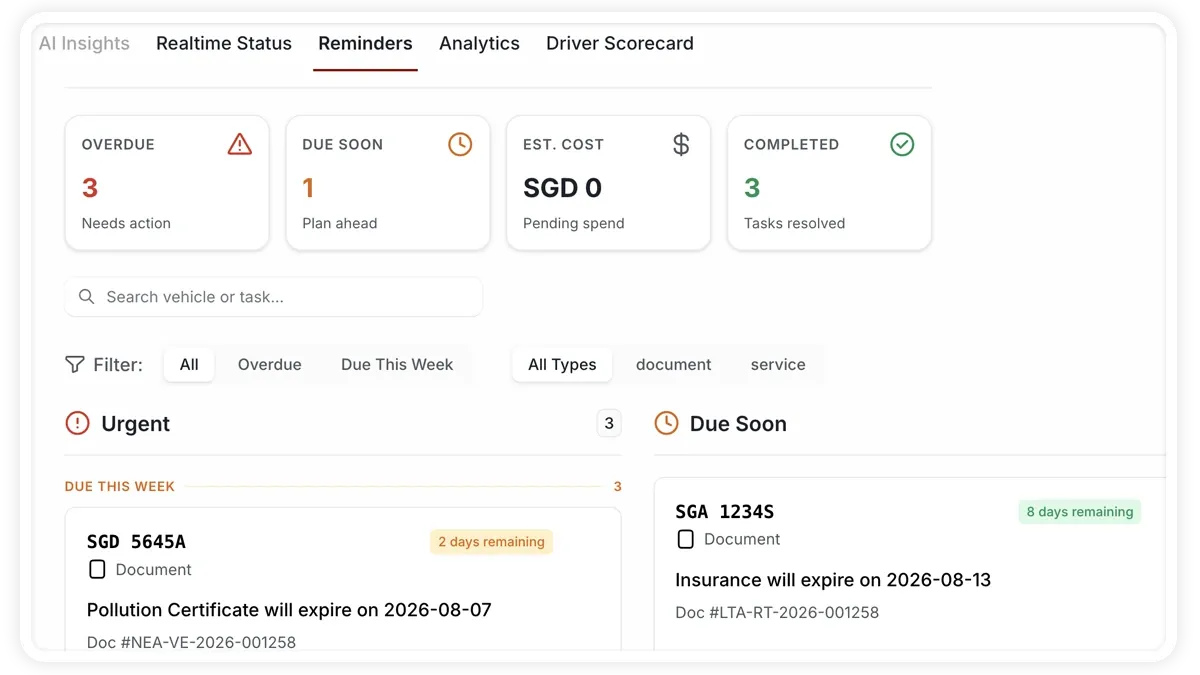
The Reminders tab surfaces upcoming and overdue service reminders right on the Dashboard, so nothing gets missed. It mirrors the Services module’s reminder queue, and you can act on items straight from here.
🖼 IMAGE PLACEHOLDER — supplied by design

Dimensions: 1200 × 675 px (16:9) · PNG or WebP · under 200 KB

Shows: The Reminders tab with upcoming and overdue service reminders listed.

Alt text: AVLView Dashboard Reminders tab listing upcoming and overdue service reminders.

How to use the Reminders tab

  1. Open the Dashboard.
  2. Select the Reminders tab.
  3. Review the reminders that are upcoming or already overdue.
  4. Act on an item directly from the tab to keep the queue clear.

What you see

  • Upcoming reminders — service items that are due soon.
  • Overdue reminders — items that have passed their due point and need clearing.
  • Same queue as Services — the tab mirrors the Services module’s reminder queue, so acting here keeps both in sync.

Frequently asked questions

Where do I set up the reminders in the first place?

Reminders are created and scheduled in the Services module. See Schedule maintenance and Set a service or renewal reminder for how to add them.

Related

  • Dashboard overview
  • The Vehicle Detail Panel

Learn more about this feature

Explore feature

More in Dashboard

  • Dashboard Overview
  • Live Vehicle Status & the Fleet Grid
  • Read a Vehicle's Live Details
  • The Driver Scorecard
  • Run a Device Diagnostics Scan
Didn't find what you needed?Contact support

In this guide

  • How to use the Reminders tab
  • What you see
  • Frequently asked questions
  • Related
Need a hand?

Talk to our team in your language.

Contact support