Join 43,000+ fleet owners tracking smarter.

Start Freeor book a live demo
AVLView

GPS fleet tracking trusted by 43,000+ fleet owners worldwide. Automate operations, cut costs, and scale effortlessly.

GDPR Compliant
Singapore • 11 Countries Worldwide
Philippines•India
support@avlview.com
+65 8228 4559

Fleet tips, straight to your inbox

No spam, unsubscribe anytime.

support@avlview.com+65 8228 4559
Product
  • Fleet Tracking
  • Driver Safety
  • Fuel Monitoring
  • Maintenance
  • Geofencing
  • Landmarks & POIs
  • Reports & Alerts
  • Fleet Capacity
  • API Integration
Solutions
  • Partner Program50-75% margins
Resources
  • Blog
  • Help Center
  • API Reference
Company
  • About Us
  • Become a Partner
  • Contact
  • Pricing
Locations
  • Dubai
  • Riyadh
  • Singapore
  • India
  • Philippines
  • USA

© 2026 AVLView. All rights reserved.

Privacy PolicyTerms of ServiceEULACookie Policy

We use cookies to improve your experience and analyse site traffic. Cookie Policy

AVLView
Pricing
🇸🇬+65 8228 4559
العربيةLogin
Getting Started
Alerts & Reminders
Maps & Geofencing
Supported Devices
Reports
Analytics
Service & Maintenance
Trip Scheduling
Dashboard
  • Dashboard Overview
  • Live Vehicle Status & the Fleet Grid
  • Read a Vehicle's Live Details
  • The Driver Scorecard
  • Run a Device Diagnostics Scan
  • Fleet Analytics on the Dashboard
  • Calibrate a Vehicle's Odometer
  • Service Reminders on the Dashboard
Settings & Admin
Troubleshooting
What's New
Dashboard
Published Jul 2026

Live Vehicle Status & the Fleet Grid

On this page

  • How to view and export live vehicle status
  • What the grid shows
  • Frequently asked questions
  • Related

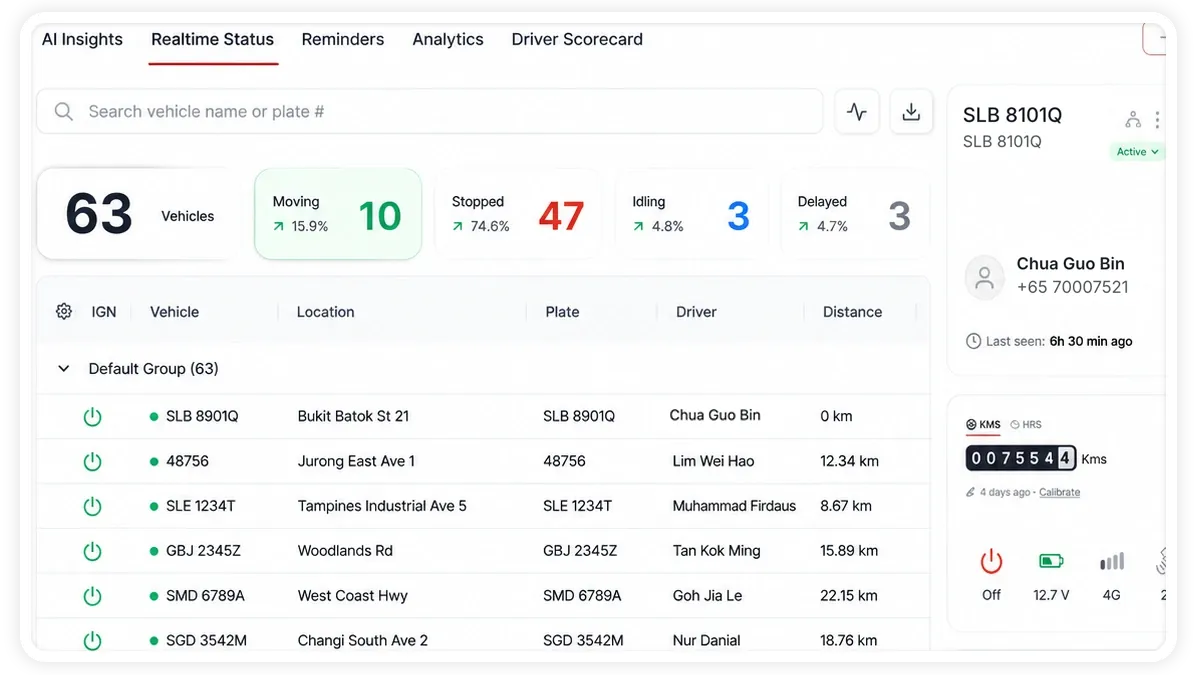
The Real-time Status screen gives you a live view of your whole fleet — where every vehicle is, whether it is moving, and its latest telemetry — in one grid you can filter and export.
🖼 IMAGE PLACEHOLDER — supplied by design

Dimensions: 1200 × 675 px (16:9) · PNG or WebP · under 200 KB

Shows: The Real-time Status screen with the four summary tiles and the live vehicle grid below.

Alt text: AVLView Dashboard Real-time Status screen showing fleet summary tiles and the live vehicle grid.

How to view and export live vehicle status

  1. Open the Real-time Status screen on the Dashboard.
  2. Read the four summary tiles at the top — Total Vehicles, Moving, Stopped, and Idling — each showing a count and its share of the fleet.
  3. Click any tile to filter the grid below to just those vehicles; the grid header shows “Filtered by …” with a Clear option to remove it.
  4. Use the quick-filter search in the toolbar to narrow the grid, then click a column header to sort.
  5. Click a row to select a vehicle — this drives the detail panel and the map.
  6. Click the Export to Excel (download) icon in the toolbar to download the current grid.

What the grid shows

  • Summary tiles — Total Vehicles (hover for a breakdown by vehicle type), Moving, Stopped, and Idling, each with a count and % of fleet.
  • Telemetry columns — IGN, Vehicle, Location, Plate, Driver, Distance, Fuel Level, Last Updated, Speed, Engine Hours, Odometer, Air Conditioning, Seatbelt, Door, Battery Voltage, Engine RPM and Temperature, Temperature/Humidity sensors, GSM Signal, Satellites, Camera, and more.
  • Column Manager — click the gear icon to show or hide columns and tailor the grid to what you need.
  • Run Diagnostics — with a vehicle selected, click the activity icon to run diagnostics; it stays disabled until you select a vehicle.
  • Right-click a row — for View on Map, View Trip Report, View Timeline, View Vehicle Settings, Run Diagnostics, and Copy/Export.

Frequently asked questions

Why are some columns empty?

Many columns — such as Fuel Level, Door, Seatbelt, and the Temperature/Humidity sensors — depend on the matching sensor being fitted to the vehicle. Without that sensor, the column has no data to show.

Why is Run Diagnostics greyed out?

Run Diagnostics acts on a single vehicle, so it stays disabled until you select a row in the grid.

Related

  • The Vehicle Detail Panel
  • Run Diagnostics
  • Dashboard overview
Next
Read a Vehicle's Live Details
Select a vehicle on the Real-time screen to open its detail panel — the Driver Card, a live mini map, a telemetry strip, and context cards.
Continue

Learn more about this feature

Explore feature

More in Dashboard

  • Dashboard Overview
  • Read a Vehicle's Live Details
  • The Driver Scorecard
  • Run a Device Diagnostics Scan
  • Fleet Analytics on the Dashboard
Didn't find what you needed?Contact support

In this guide

  • How to view and export live vehicle status
  • What the grid shows
  • Frequently asked questions
  • Related
Need a hand?

Talk to our team in your language.

Contact support