Published Aug 2026
Calibrate a Vehicle's Odometer
Calibrating the odometer aligns AVLView's GPS-based distance with the vehicle's real dashboard reading, so distance and cost-per-km figures stay accurate.
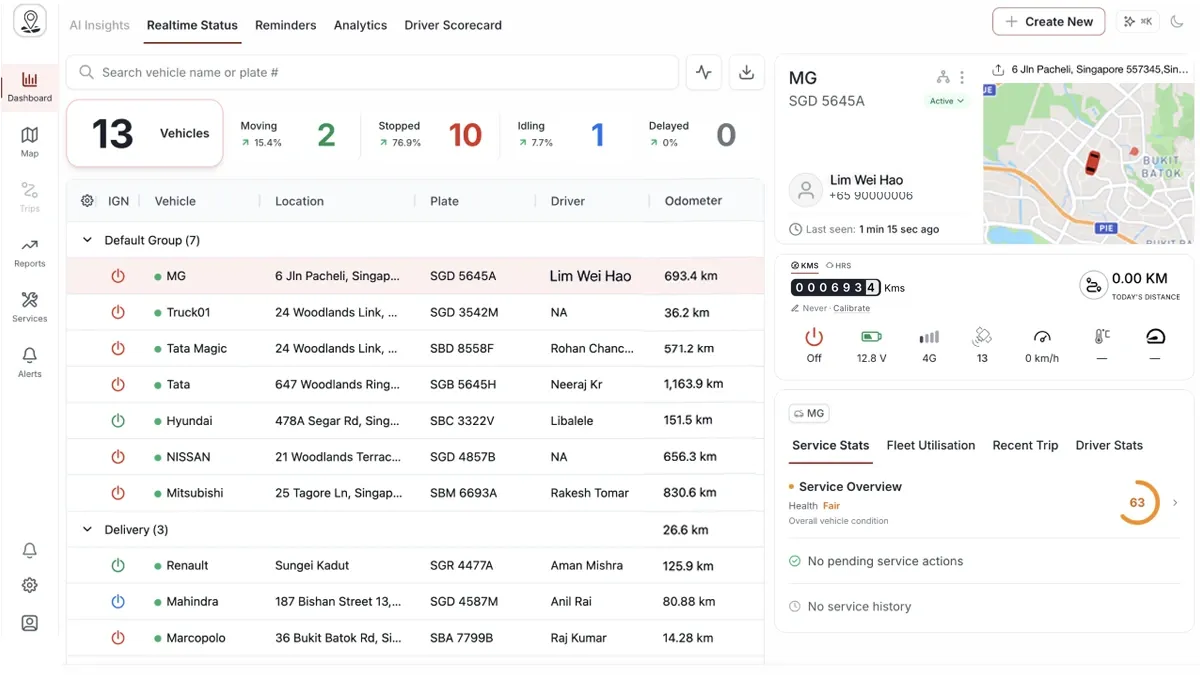
How to calibrate the odometer
- Select the vehicle on the Real-time screen to open its detail panel.
- On the telemetry strip in the right panel, click Calibrate beside the odometer.
- Enter the vehicle's current dashboard odometer reading.
- Save to set the new baseline.
Good to know
- Staleness is colour-coded — a warning appears after 30 days, and a stronger warning after 90 days.
- Keep it current — an up-to-date reading makes distance and cost-per-km figures more accurate.
Frequently asked questions
How often should I re-calibrate?
Before the readings go stale — the odometer is flagged after 30 days and more strongly after 90 days, so re-calibrate when you see the warning.
Why does calibration matter?
GPS distance can drift from the real odometer. Calibrating keeps distance and cost-per-km figures accurate.
Related
Next
Service Reminders on the Dashboard
The Reminders tab surfaces upcoming and overdue service reminders right on the Dashboard, so nothing gets missed — and you can act on items there.
Learn more about this feature
Explore featureMore in Dashboard
Didn't find what you needed?Contact support