Published Aug 2026
Dashboard Overview
The Dashboard is your fleet workspace in AVLView — a single tabbed screen where you watch vehicles live, keep on top of service, and track performance over time. This overview shows you where everything lives so you can move around with confidence.
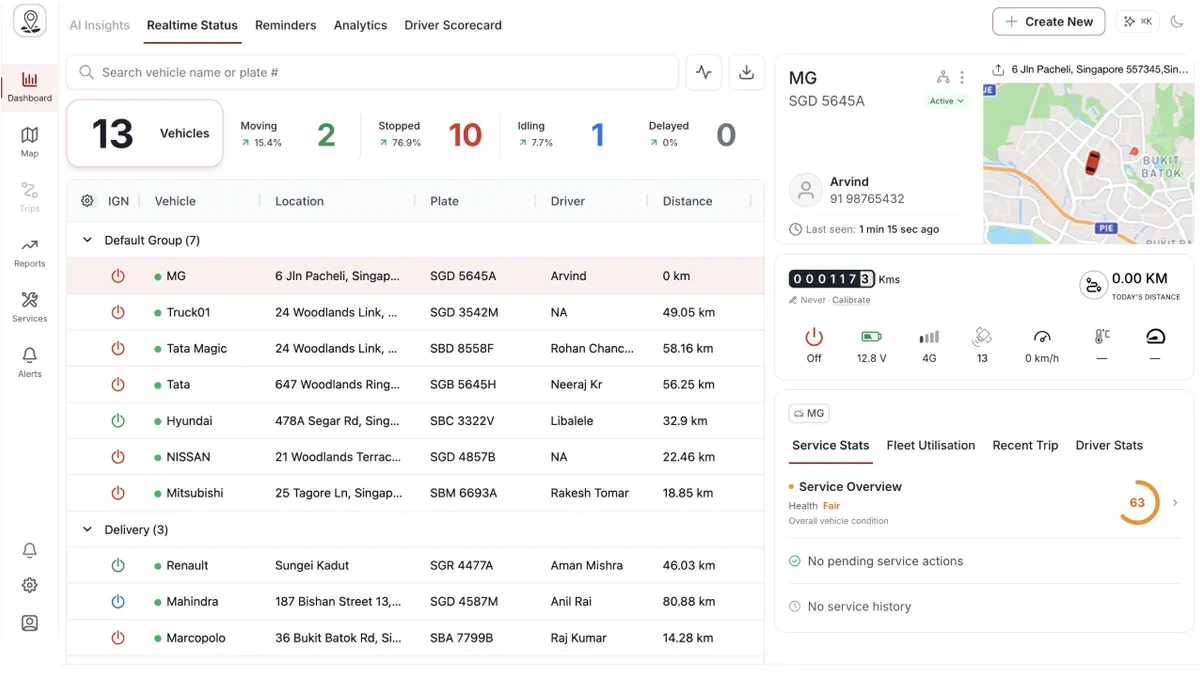
The workspace tabs
- Real-time — the main live fleet screen. See every vehicle's current position and status, and select one to open its detail panel.
- Reminders — service reminders, so upcoming maintenance never slips through the cracks.
- Analytics — fleet KPI trends that show how your fleet is performing across time.
- Driver Scorecard — driver-by-driver behaviour and performance scoring.
The top bar
A persistent bar sits above every tab with the tools you reach for most:
- Create New menu — start a new record without leaving the Dashboard.
- Command palette — press Cmd/Ctrl + K (the button shows the shortcut) to jump to anything quickly.
- Notifications bell — recent alerts and updates for your fleet.
- Theme toggle — switch between light and dark modes.
- Help videos — a popover of short how-to videos.
Frequently asked questions
Where do I see a single vehicle's live status?
Open the Real-time tab and select the vehicle — its detail panel opens on the right. See Read a Vehicle's Live Details.
How do I find something quickly?
Press Cmd/Ctrl + K to open the command palette from anywhere in the Dashboard.
Related
Next
Live Vehicle Status & the Fleet Grid
See every vehicle's live status and telemetry in one grid on the Dashboard, filter it with the summary tiles, and export it to Excel.
Learn more about this feature
Explore featureMore in Dashboard
Didn't find what you needed?Contact support