Published Aug 2026
Read a Vehicle's Live Details
The detail panel is your close-up view of a single vehicle. Select any vehicle on the Real-time screen and the panel opens on the right, showing who is driving, where it is, and how it is running right now.
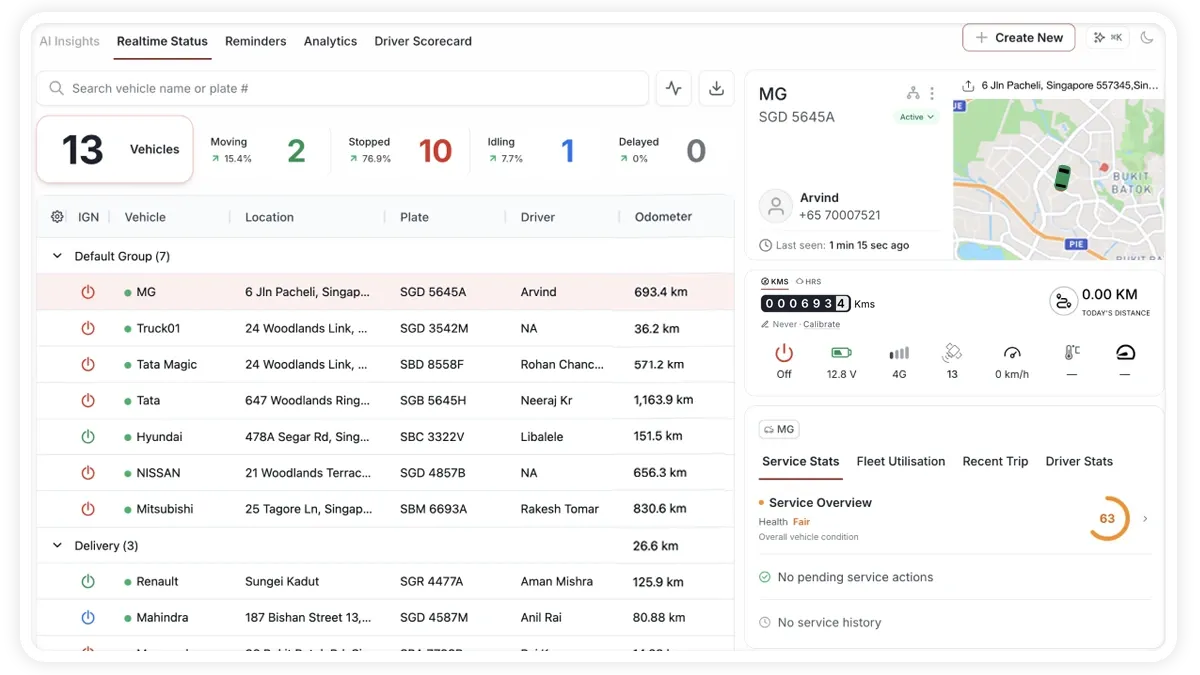
How to open a vehicle's details
- Open the Real-time tab.
- Select a vehicle from the map or the grid.
- Read its detail panel on the right — Driver Card, mini map, telemetry strip, and overview cards.
What the panel shows
- Driver Card — vehicle name and group, make/model or plate, the assigned driver (avatar, name, phone), the last-updated time, and a QR code. A menu lets you Update Driver (with a warning if that driver is already on another vehicle) and Update Group. If the device is stale, a device not responding strip appears and links to a diagnostics scan.
- Mini live map — centres on the vehicle at zoom 17, with Share location and Save POI actions.
- Telemetry strip — an odometer (with Calibrate), a Today's distance / Fuel toggle, and live icons: Ignition on/off, Battery voltage, Network signal (type and strength), GPS satellites, Speed, Engine Temperature and Engine RPM. Reefer-equipped vehicles add Temperature Zone 1–4 and Humidity 1–2 chips.
- Overview cards — tabbed cards that switch context between fleet-wide charts and per-vehicle summaries: Service, Fleet utilisation, Recent trips and Driver.
Frequently asked questions
Why are some readouts blank?
Sensor-based readouts — such as Engine Temperature, RPM, or reefer Temperature and Humidity — need the matching hardware fitted to the vehicle. Without the sensor, those values won't appear.
What does the 'device not responding' strip mean?
The device's data has gone stale. Use the strip to open a diagnostics scan — see Run a Device Diagnostics Scan.
Related
Next
The Driver Scorecard
The Driver Scorecard tab ranks your drivers by a safety and performance score, so you can spot who's improving and who needs coaching.
Learn more about this feature
Explore featureMore in Dashboard
Didn't find what you needed?Contact support