Join 43,000+ fleet owners tracking smarter.

Start Freeor book a live demo
AVLView

GPS fleet tracking trusted by 43,000+ fleet owners worldwide. Automate operations, cut costs, and scale effortlessly.

GDPR Compliant
Singapore • 11 Countries Worldwide
Philippines•India
support@avlview.com
+65 8228 4559

Fleet tips, straight to your inbox

No spam, unsubscribe anytime.

support@avlview.com+65 8228 4559
Product
  • Fleet Tracking
  • Driver Safety
  • Fuel Monitoring
  • Maintenance
  • Geofencing
  • Landmarks & POIs
  • Reports & Alerts
  • Fleet Capacity
  • API Integration
Solutions
  • Partner Program50-75% margins
Resources
  • Blog
  • Help Center
  • API Reference
Company
  • About Us
  • Become a Partner
  • Contact
  • Pricing
Locations
  • Dubai
  • Riyadh
  • Singapore
  • India
  • Philippines
  • USA

© 2026 AVLView. All rights reserved.

Privacy PolicyTerms of ServiceEULACookie Policy

We use cookies to improve your experience and analyse site traffic. Cookie Policy

AVLView
Pricing
🇸🇬+65 8228 4559
العربيةLogin
Getting Started
Alerts & Reminders
Maps & Geofencing
Supported Devices
  • Supported GPS Devices
  • Teltonika - Configure and Install FMB 120 GPS Device
  • Concox - Configure GT06 GPS Device
  • Ruptela - Installation Guide
  • Ruptela - Configure iButton
  • Ruptela - Customise Ignition Settings
  • Ruptela - Track Trailers
  • Teltonika - Configure Seatbelt
Reports
Analytics
Service & Maintenance
Trip Scheduling
Dashboard
Settings & Admin
Troubleshooting
What's New
Supported Devices
Published Jul 2026

Teltonika - Configure Seatbelt

Teltonika

On this page

  • Setup guide
  • Related
  • Frequently asked questions

This guide shows how to configure seatbelt detection on a Teltonika device, so AVLView can raise a seatbelt alert when the belt isn't worn.
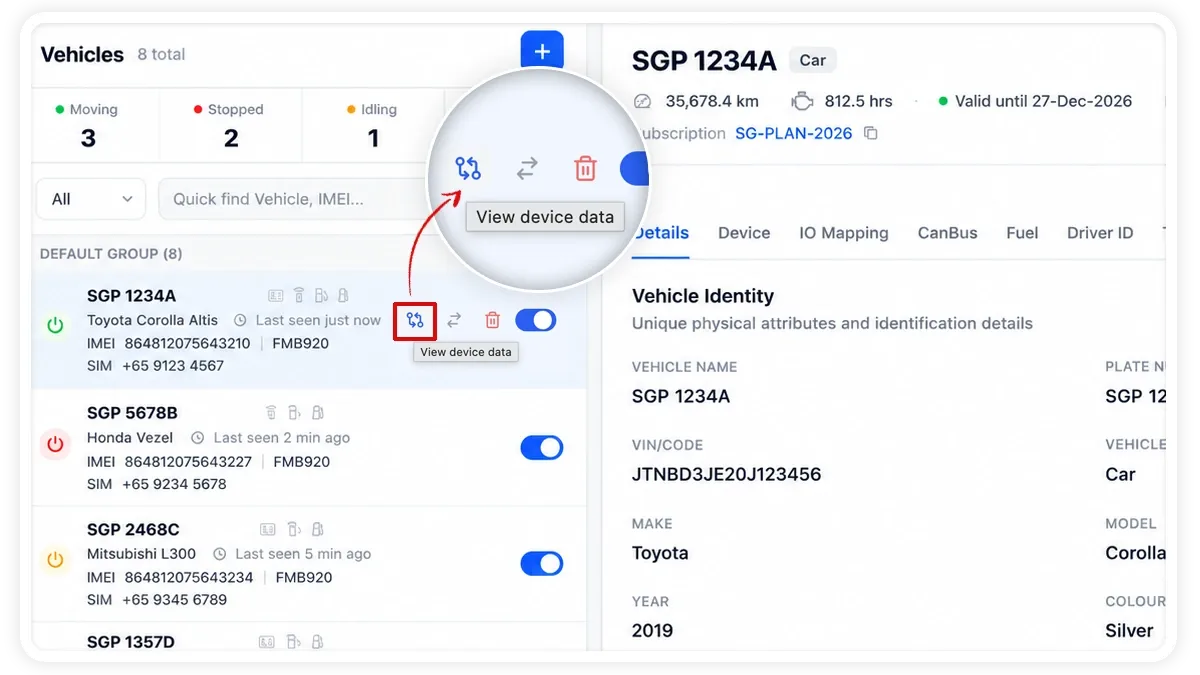
🖼️ IMAGE PLACEHOLDER — supplied by design

Dimensions: 1200 × 675 px (16:9) · PNG or WebP · under 200 KB

Shows: The partner portal with the "View Device Data" tab highlighted, used to open the Teltonika device data for the selected client.

Alt text: View Device Data tab in the partner portal

Setup guide

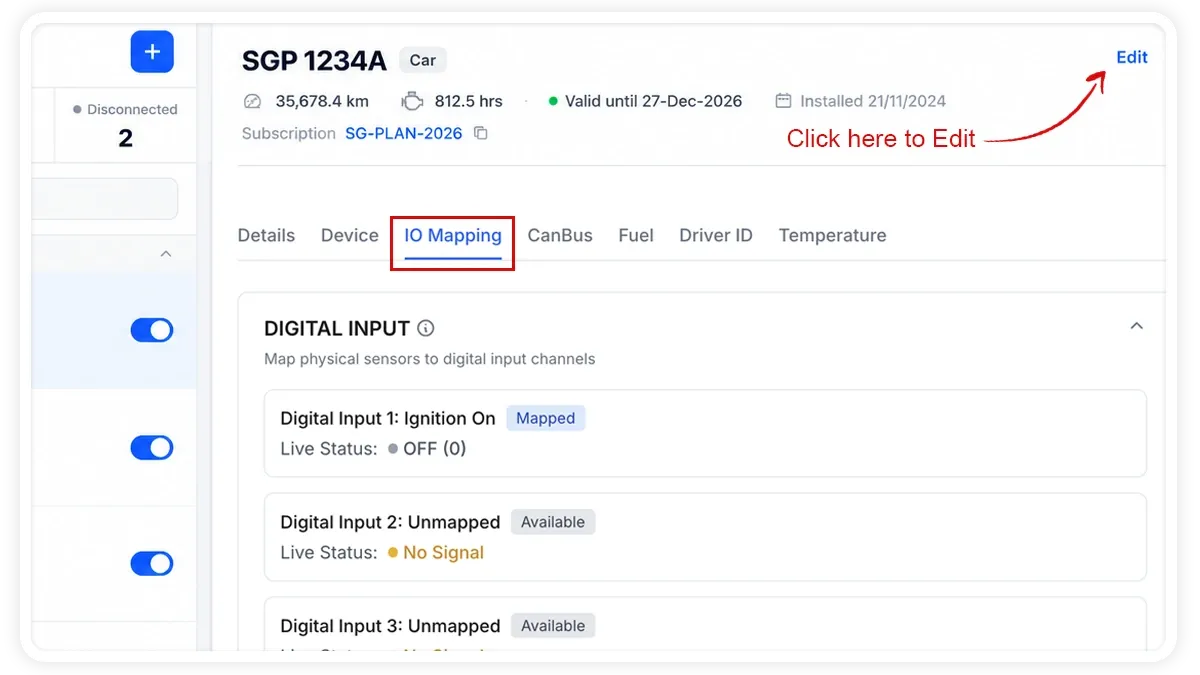
In the platform, you can monitor the status of Ignition, A/C, Seatbelt, doors, and more.

To activate these features, you need to install GPS devices equipped with digital inputs, which should be connected to the appropriate accessory wiring.

To check the status, you can link the digital inputs of the GPS device to corresponding accessories within the platform.

This help topic guides you through configuring a seat belt.

Step 1: Identify device digital input

To begin, locate the digital input on the device that is connected to the seat belt wiring. You can view this by verifying the device data.

To verify the device data, choose the relevant client in the partner portal whose vehicle you wish to configure the seatbelt for, and then click on the ‘View Device Data’ tab to access the device data.


Step 2: Check device digital inputs status

Check device digital inputs status, ie High state or Low state from device data report.
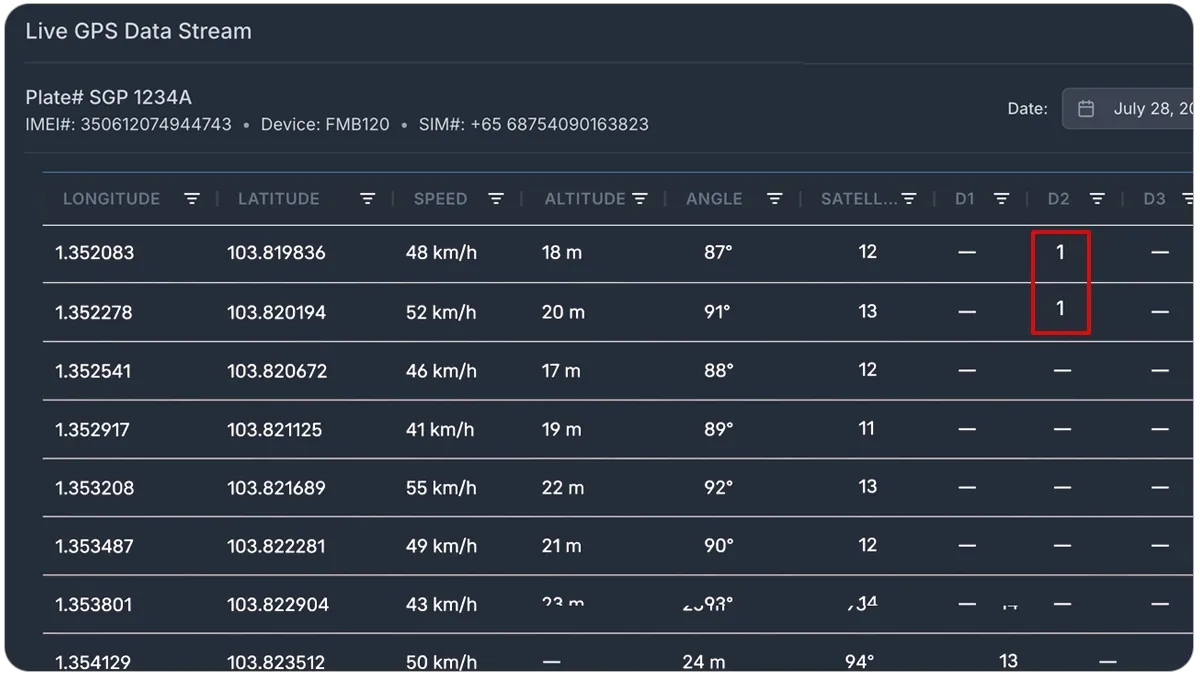

🖼️ IMAGE PLACEHOLDER — supplied by design

Dimensions: 1200 × 675 px (16:9) · PNG or WebP · under 200 KB

Shows: The device data report showing the digital inputs status (High or Low state) for the Teltonika device.

Alt text: Device data report showing digital input status


Step 3: Navigate to “Device Configuration”

Click on “Device Configuration” tab dispplayed under vehicle details


🖼️ IMAGE PLACEHOLDER — supplied by design

Dimensions: 1200 × 675 px (16:9) · PNG or WebP · under 200 KB

Shows: The vehicle details view with the "Device Configuration" tab highlighted.

Alt text: Device Configuration tab under vehicle details


Step 4: Configure the digital input

Configure the corresponding digital input to “Seat belt worn” in IO mapping under device configuration tab.
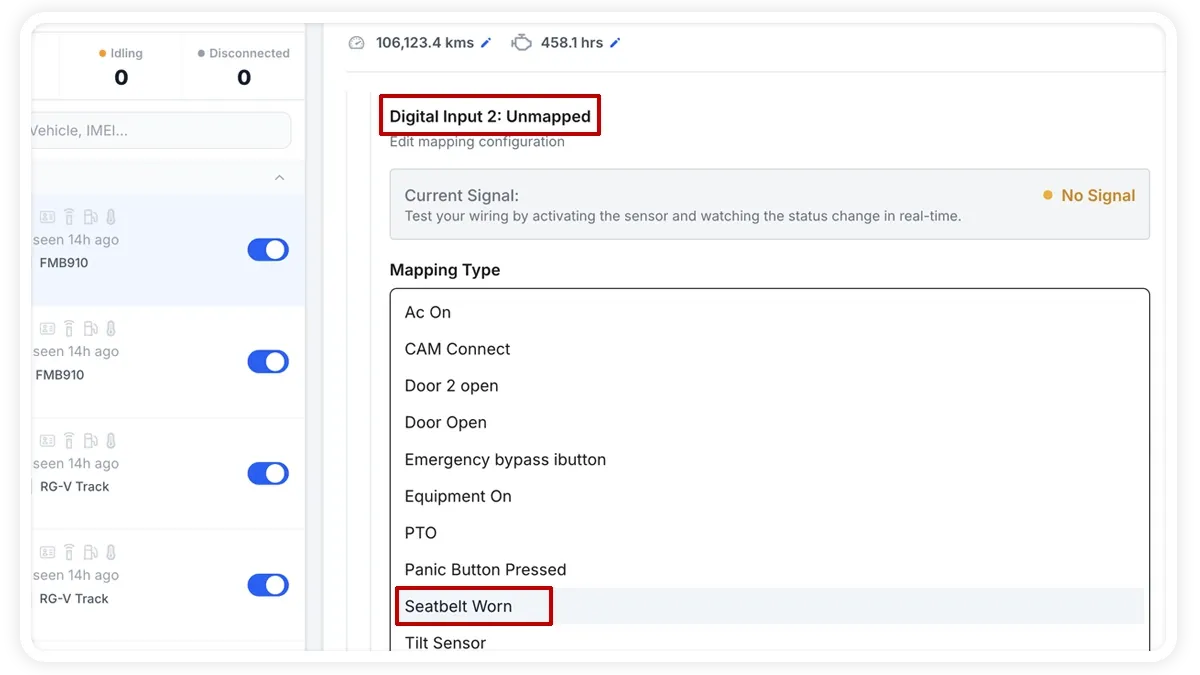
🖼️ IMAGE PLACEHOLDER — supplied by design

Dimensions: 1200 × 675 px (16:9) · PNG or WebP · under 200 KB

Shows: The IO mapping section of the Device Configuration tab, with the digital input set to "Seat belt worn".

Alt text: IO mapping set to Seat belt worn

Step 5: Save the changes

Finally Save the chnages you have made by clicking the “Submit” button
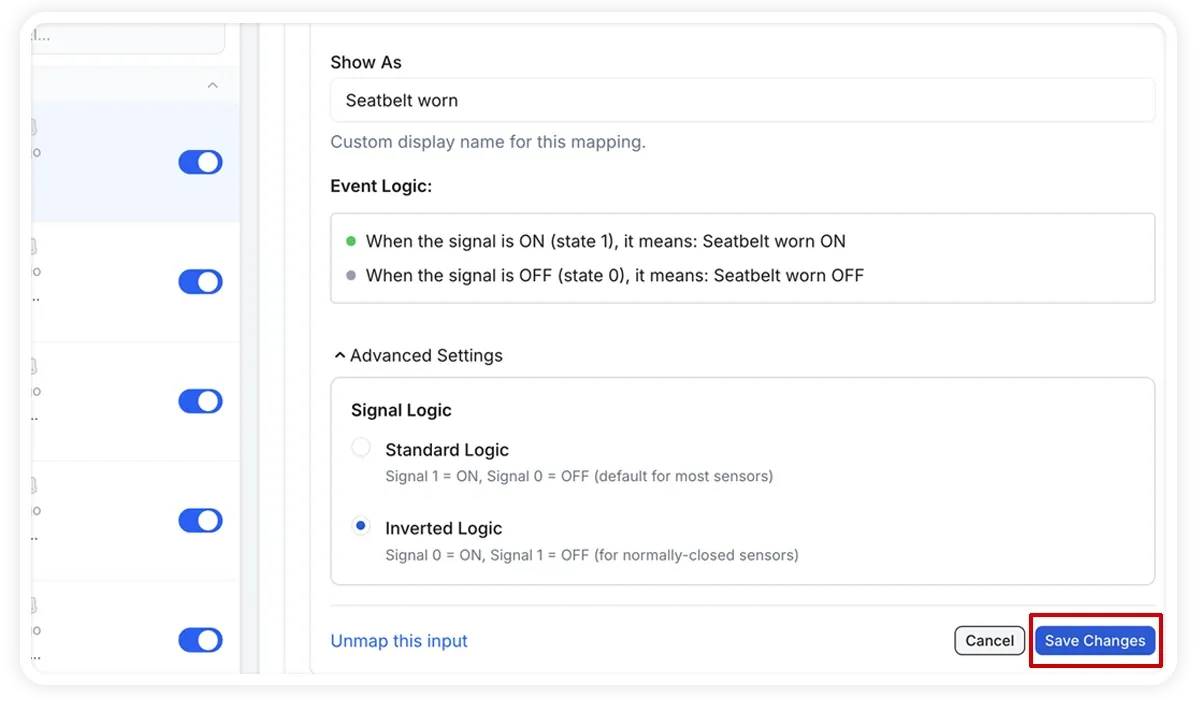

🖼️ IMAGE PLACEHOLDER — supplied by design

Dimensions: 1200 × 675 px (16:9) · PNG or WebP · under 200 KB

Shows: The Device Configuration tab with the "Submit" button highlighted to save the seatbelt configuration changes.

Alt text: Saving device configuration changes with the Submit button


Related

  • All supported GPS devices
  • Add a vehicle or GPS device to AVLView

Frequently asked questions

How do I use the seatbelt data?

Once configured, set a seatbelt alert to be notified when the belt isn't worn.

Is my device supported?

AVLView is device-agnostic and works with 200+ GPS models. If you don't see yours, contact support to confirm.

The device isn't reporting after setup.

Recheck the APN and server settings, confirm the SIM has an active data plan, and make sure the device has power. See Troubleshooting.

Learn more about this feature

Explore feature

More in Supported Devices

  • Supported GPS Devices
  • Teltonika - Configure and Install FMB 120 GPS Device
  • Concox - Configure GT06 GPS Device
  • Ruptela - Installation Guide
  • Ruptela - Configure iButton
Didn't find what you needed?Contact support

In this guide

  • Setup guide
  • Related
  • Frequently asked questions
Need a hand?

Talk to our team in your language.

Contact support