Published Jul 2026
Add a Vehicle
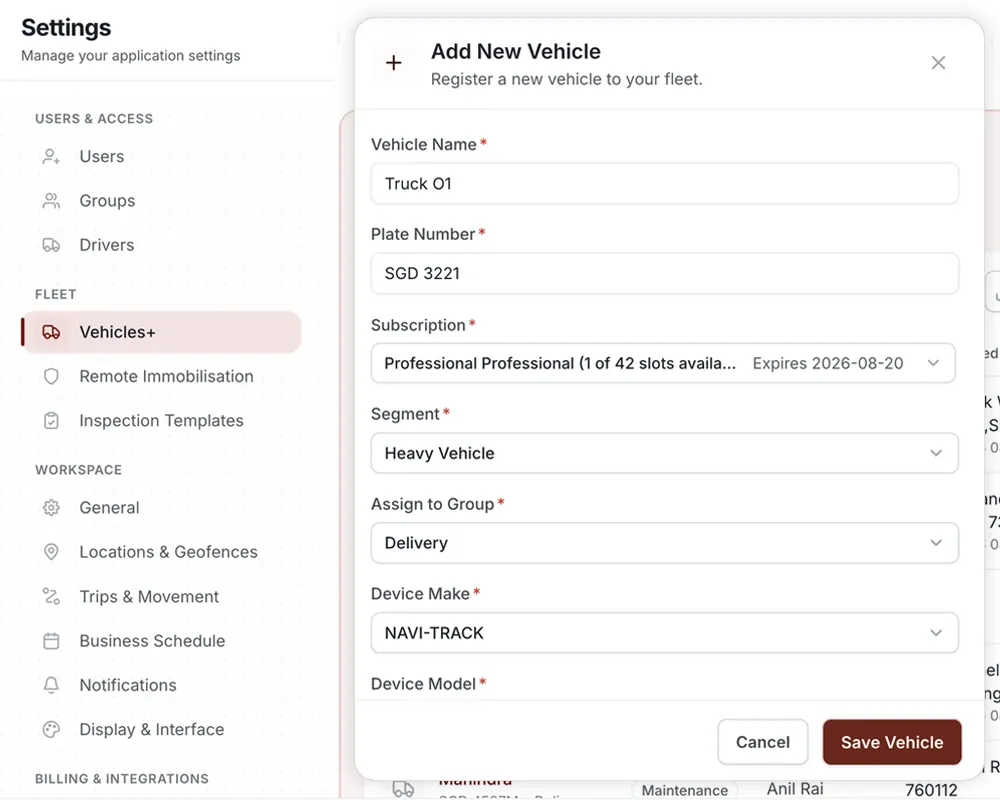
To add a vehicle, go to Settings → Vehicles & Hardware and select Add vehicle. Enter the vehicle’s details and its GPS device’s IMEI so AVLView can start receiving location data.
Before you start
- Have your GPS device’s IMEI number ready — it’s usually printed on the device or its box.
- Make sure the device is installed and powered in the vehicle.
- Check your device is supported — AVLView works with more than 200 models. See Supported Devices.
Add a vehicle
- Go to Settings → Vehicles & Hardware.
- Select Add vehicle.
- Enter the vehicle details — name or registration, type, and group.
- Enter the device IMEI and select the device model.
- Save. Once the device reports in, your vehicle appears on the map.
Frequently asked questions
Where do I find the IMEI number?
The IMEI is a unique number printed on the GPS device and its packaging. If you can’t find it, your installer or reseller can provide it.
My new vehicle isn’t showing on the map.
The device may not have reported yet. Check that it’s powered, the SIM has an active data plan, and the IMEI was entered correctly. See Troubleshooting.
How many vehicles can I add?
That depends on your plan. If you need to add more vehicles than your plan allows, contact your account manager or support.
Next
Invite Your Team
Add people to your AVLView account from Settings → Users. Send an email invite, choose each person’s role, and control what they can see and do.
Learn more about this feature
Explore featureMore in Getting Started
Didn't find what you needed?Contact support