Published Jul 2026
Invite Your Team
To add someone to your AVLView account, go to Settings → Users and select Invite user. Enter their email and choose their role — they’ll receive an email invitation to set a password and sign in.
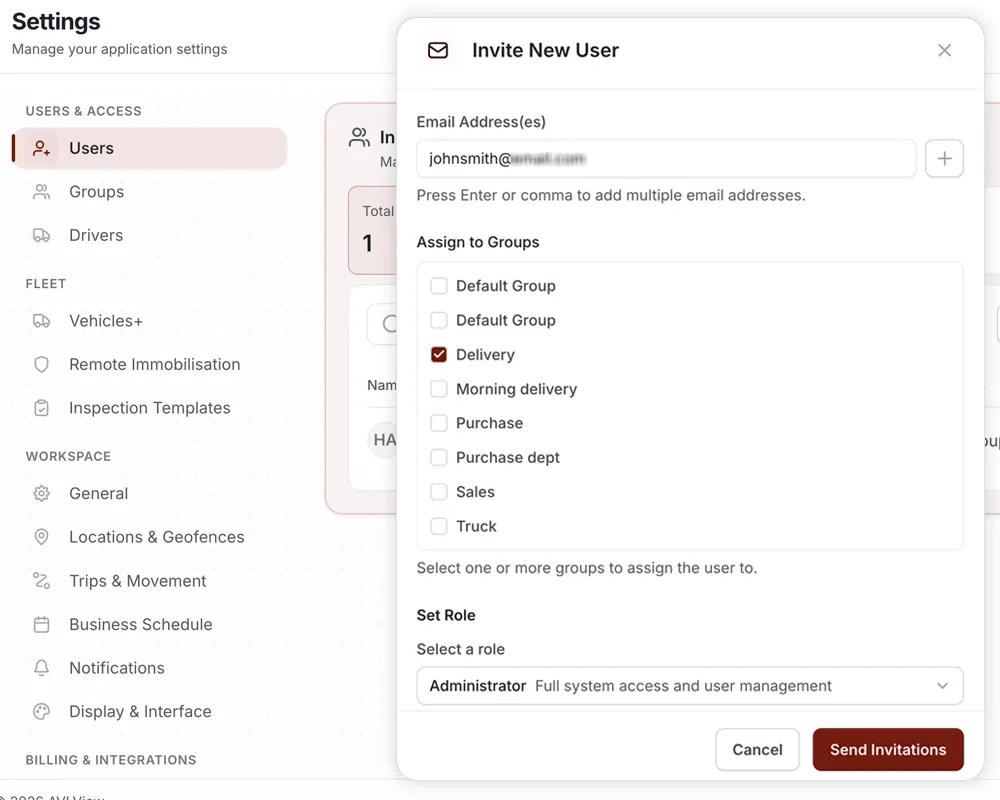
Invite a user
- Go to Settings → Users.
- Select Invite user.
- Enter the person’s email address.
- Choose their role — this controls what they can see and do.
- Send the invite. They’ll receive an email to set their password and sign in.
Manage roles and permissions
- Roles determine which vehicles, reports, and settings each user can access.
- Group users and vehicles together to keep large fleets organised.
- Pending invitations can be resent or revoked from the Users page.
Frequently asked questions
The person didn’t get the invite.
Ask them to check their spam folder, then resend the invitation from Settings → Users.
Can I limit a user to certain vehicles?
Yes. Use roles and groups to scope each user’s access to only the vehicles and features they need.
How do I remove a user?
Go to Settings → Users, select the user, and revoke their access. They’ll no longer be able to sign in.
Learn more about this feature
Explore featureMore in Getting Started
Didn't find what you needed?Contact support