Published Jul 2026
Live Tracking
To track your vehicles live, open MapView from the left menu. AVLView shows each vehicle’s real-time position on the map, updating every few seconds, along with its status, speed, and location.
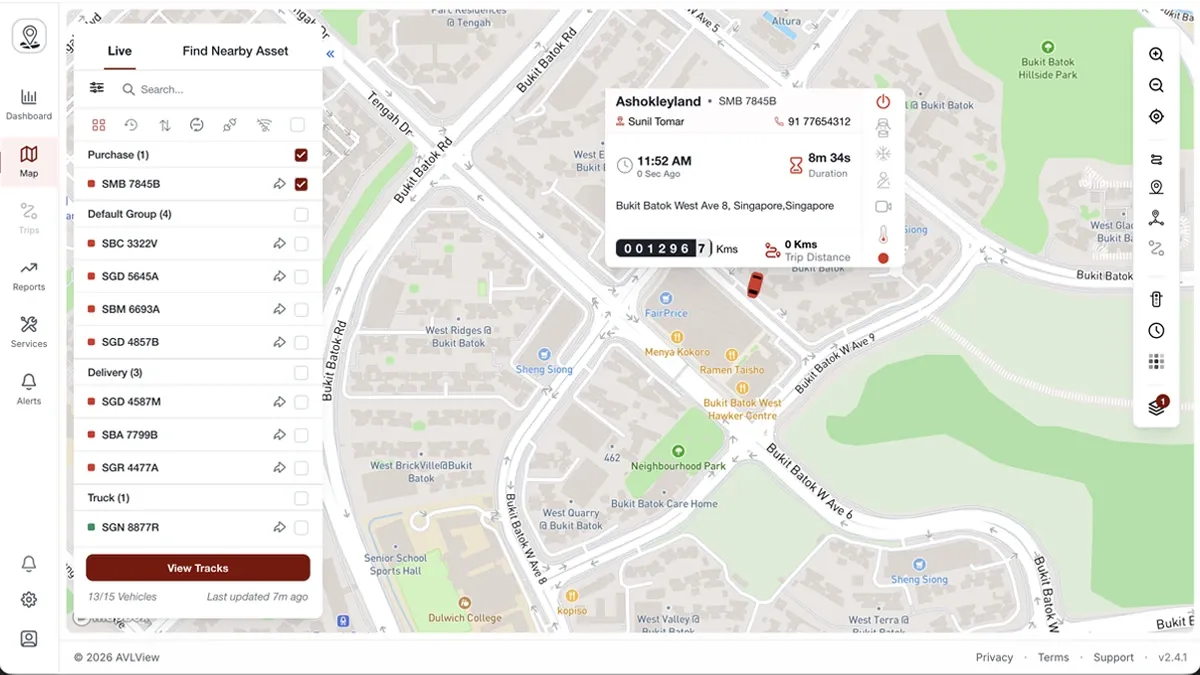
View your fleet on the map
- Select MapView from the left navigation.
- Your vehicles appear as markers on the map, each showing its current status.
- Select any vehicle to see its details — speed, direction, location, and the time of its last update.
Find and focus on a vehicle
- Use the vehicle list or search box to jump straight to a specific vehicle.
- When you’re zoomed out, nearby vehicles group into clusters — zoom in to separate them.
See where a vehicle has been
- Select a vehicle, then open its trip history or route playback.
- Choose a date or time range to replay the route it travelled.
Frequently asked questions
How often does the map update?
Vehicle positions refresh in near real time — typically every few seconds, depending on the GPS device and mobile network.
Why is a vehicle in the wrong place or not moving?
This usually means the GPS device has a weak signal or hasn’t reported recently. See Troubleshooting for what to check.
Can I share a vehicle’s live location?
Yes. AVLView can generate a shareable live-location link that expires automatically after a time you choose — useful for giving a customer an ETA without granting account access.
Next
Add a Vehicle
Add a vehicle in Settings → Vehicles & Hardware. Enter the vehicle’s details and the GPS device’s IMEI so AVLView can start tracking it.
Learn more about this feature
Explore featureMore in Getting Started
Didn't find what you needed?Contact support