Your Dashboard
Your AVLView dashboard is the home screen you see after logging in. It summarises your whole fleet at a glance — how many vehicles are moving, idling, or stopped, which alerts need attention, AI-generated insights, and how your drivers are performing.
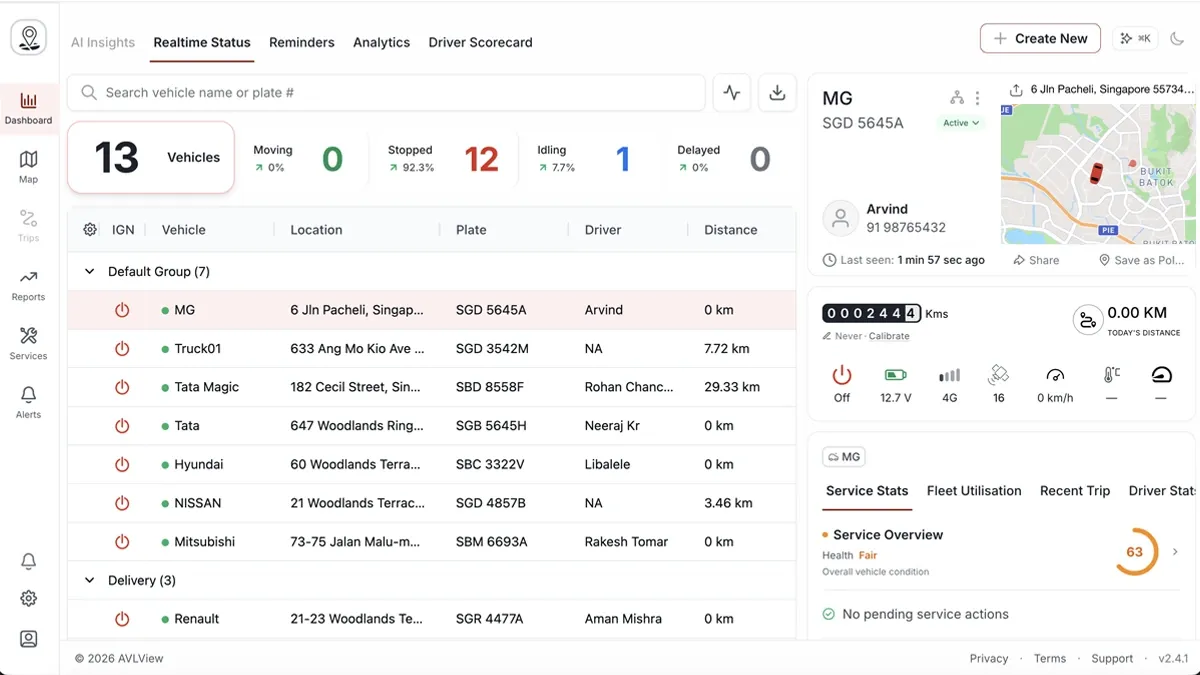
What’s on the dashboard
- Fleet status — a live count of vehicles that are moving, idling, stopped, or offline.
- Alerts — the latest events that need your attention, such as speeding or geofence breaches.
- AI insights — automatic observations about efficiency, cost, and safety trends across your fleet.
- Driver scorecard — how your drivers rank on safe-driving behaviour.
- Analytics — charts for distance, utilisation, and activity over time.
Getting around AVLView
Use the left-hand navigation menu to move between the main areas:
- MapView — track your vehicles live on the map.
- Alerts — view and manage alert rules and history.
- Reports — generate and export reports.
- Services — maintenance, costs, and compliance.
- Settings — vehicles, users, and account preferences.
Frequently asked questions
Can I change how the dashboard looks?
Yes. You can adjust display preferences and switch between light and dark mode from Settings → Appearance.
Why is a vehicle showing as offline?
A vehicle appears offline when its GPS device hasn’t reported recently — usually a power, SIM, or mobile-signal issue. See Troubleshooting for the common fixes.
What are AI insights?
AI insights automatically analyse your fleet data to surface savings, safety issues, and unusual patterns — so you don’t have to dig through reports to find them.
Learn more about this feature
Explore feature