Log In
To log in to AVLView, go to fleet.avlview.com and enter the email address and password for your account. If your fleet administrator invited you, open the link in your invitation email first to set your password, then sign in.
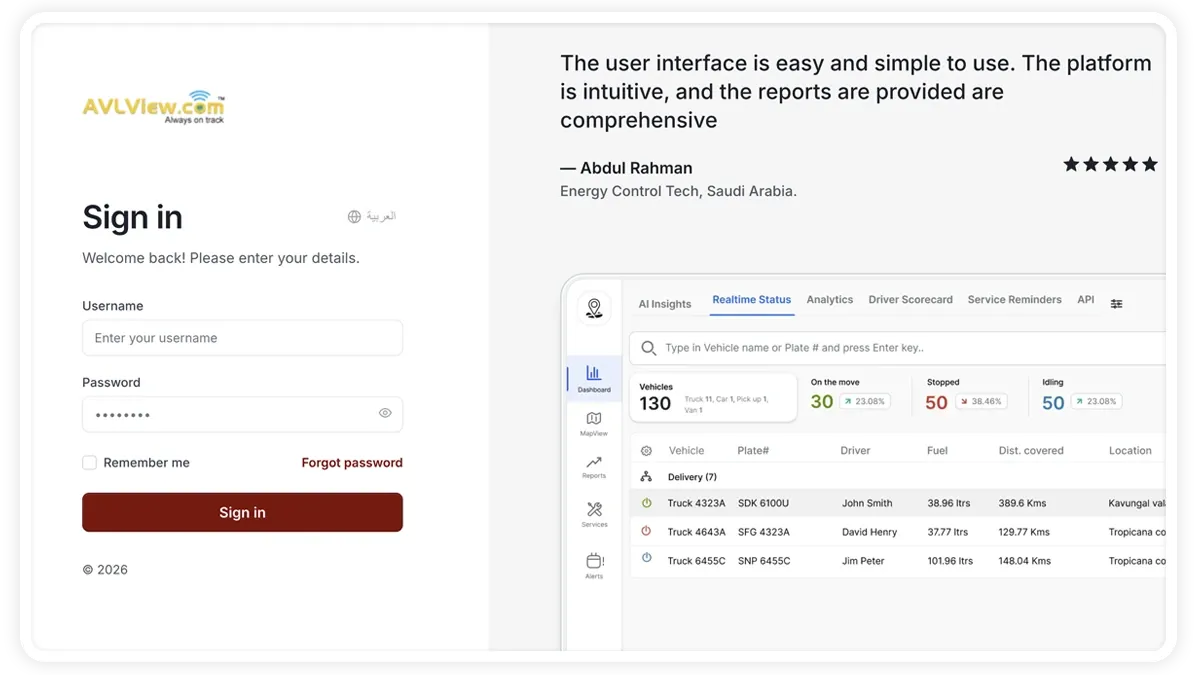
Log in on the web
- Go to fleet.avlview.com.
- Enter your registered email address.
- Enter your password.
- Select Sign in. Your fleet dashboard opens.
Logging in for the first time (accepting an invite)
If your administrator added you as a user, you’ll receive an invitation email:
- Open the email and select Accept invitation.
- Set your password.
- You’re taken straight into AVLView. Next time, sign in at fleet.avlview.com.
Didn’t get the email? Ask your administrator to resend it from Settings → Users, or check your spam folder.
Log in on the mobile app
- Open the AVLView app on your phone or tablet.
- Enter the same email and password you use on the web.
- Tap Sign in to manage your fleet on the go.
Forgot your password?
- On the sign-in screen, select Forgot password?
- Enter your email address and submit the form.
- Open the reset link in your inbox and choose a new password that meets your organisation’s requirements.
Frequently asked questions
What is the AVLView login URL?
Log in at fleet.avlview.com using the email and password for your account.
I didn’t receive my invitation email.
Check your spam or junk folder first. If it’s not there, ask your fleet administrator to resend the invite from Settings → Users.
Why can’t I log in?
Confirm your email address is spelled correctly and that Caps Lock is off. If your account is locked after repeated failed attempts, your administrator can reset it, or you can contact support.